VisorMon User Guide
Chapter 6
Working with a guest
A guest's page: power, console, snapshots, backups, hardware, migrate, clone and creating guests.
6.1A guest's page
Every virtual machine (VM) and container has its own page. It shows how the guest is doing right now and over time, and it is where you start, stop and change it. Open a guest by tapping it on the dashboard, the guests dashboard, the Guests tab or in cluster search; see Guests and Search, tasks and alerts.
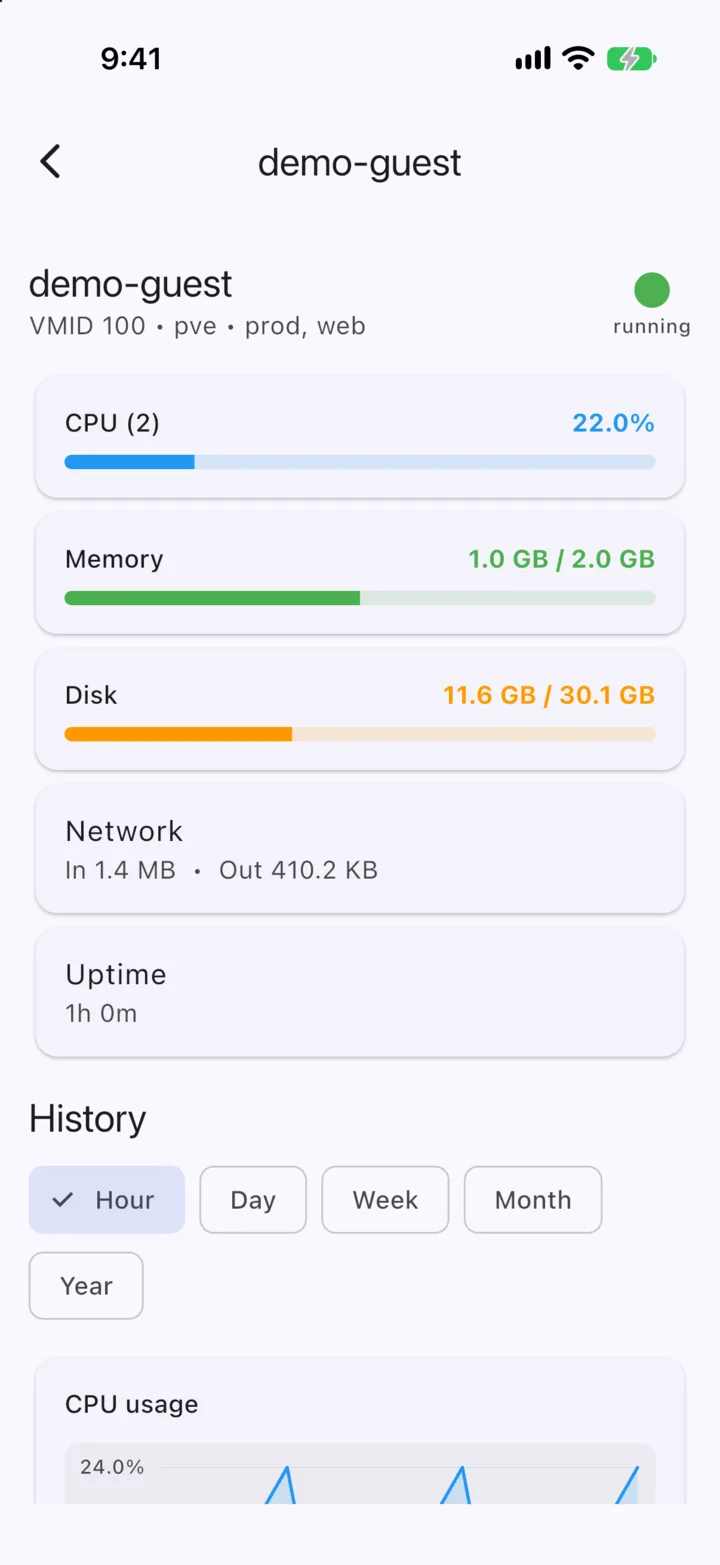
From top to bottom, the page has:
- The heading. The guest's name, then its VMID (the guest's ID number), the node it runs on, template if it is one, and its tags.
- Its state, on the right: running, paused, stopped with a red dot, or template. While VisorMon follows a reboot it shows rebooting and then starting.
- Readings: CPU, memory, disk, network and uptime.
- History: charts over the last hour, day, week, month or year.
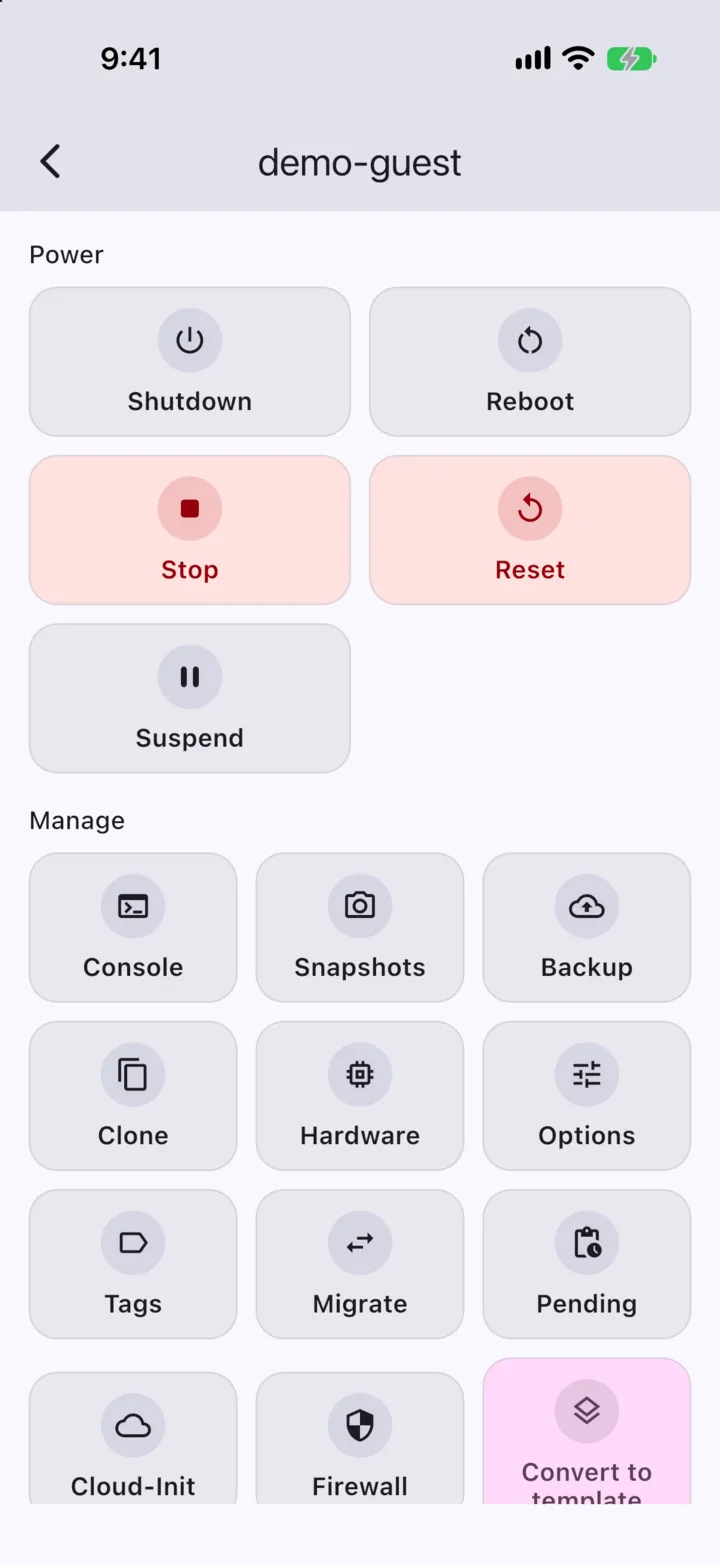
- Power and Manage: the buttons for everything you can do with the guest.
- Notes and Tasks: the guest's notes from Proxmox and its recent tasks.
The page loads when you open it and loads again after a power action or when you come back from one of its sections. It does not refresh on its own; to see fresh readings, go back and open the guest again. If something could not be loaded, a box explains why and offers Retry.
Readings
- CPU
- How busy the guest's CPU is, as a share of the cores it has. The number of cores is in brackets, for example CPU (2).
- Memory
- Memory in use and the memory assigned, for example 1.0 GB / 2.0 GB.
- Disk
- How full the guest's disk is, when that can be known. See Disk usage below.
- Network
- Data received (In) and sent (Out) since the guest last started.
- Uptime
- How long the guest has been running. A dash means it is not running.
Disk usage
Proxmox measures how full a container's root disk is, but not a VM's disk. For a VM, VisorMon asks the QEMU guest agent, a small program that runs inside the VM, how much space its file systems use. It adds up the file systems the agent reports, so the total is the space inside the VM, which can differ from the size of the virtual disk.
When usage cannot be read, the Disk row shows the size that is allocated and one of these lines:
| The Disk row says | Why |
|---|---|
| Usage is shown while the VM is running with the guest agent. | The VM is not running. |
| Turn on the QEMU guest agent to see usage. | The agent is switched off in the VM's options. Turn it on in Options, and install the agent inside the VM if it is not there yet. |
| The guest agent is not answering, so usage cannot be read. | The agent is switched on, but it did not answer. It may not be installed or running in the VM, or your account may not be allowed to ask it (see Permissions). |
| Usage needs the QEMU guest agent running in the VM. | The agent did not answer, and Proxmox did not say it is switched on. Usually it is switched off: turn it on in Options and install it inside the VM. |
| Usage is shown while the container is running. | The container is not running. |
| Proxmox did not report disk usage. | The container is running, but Proxmox sent no figure. |
History
Choose Hour, Day, Week, Month or Year above the charts. Each chart's legend shows its latest value.
- CPU usage.
- Memory usage: memory used, and the total.
- Disk usage: space used, and the disk's size. Containers only: Proxmox does not record disk usage history for VMs, and the page says so under the charts.
- Network traffic: data received and sent per second.
- Disk I/O: data read from and written to disk per second.
If your account may not read a guest's history, the charts are replaced by History is not permitted for this account.
The Manage buttons
Below the history, Power holds the power actions (see Power actions) and Manage opens everything else:
| Button | Opens | Shown |
|---|---|---|
| Console | The console | Always |
| Snapshots | Snapshots | Always |
| Backup | Backup and restore | Always |
| Clone | Clone | When your account may clone at least one guest |
| Hardware | Hardware | Always |
| Options | Options | Always |
| Tags | Tags | Always |
| Migrate | Migrate | When your account may migrate at least one guest |
| Pending | Pending changes | Always |
| Cloud-Init | Cloud-Init | VMs only |
| Firewall | Firewall | Always |
| Convert to template | Convert to template | Not on templates, and only when your account may create guests |
A button your account may not use on this guest is grayed out, with the reason under its label, for example No console permission on this VM.
6.2Power actions
The Power buttons change with the guest's state. A stopped guest has Start. A running guest has Shutdown, Reboot, Stop, Suspend and, for a VM, Reset. A paused guest has Resume and Stop. Templates cannot run, so they have no Power section.
| Button | What it does | Asks first |
|---|---|---|
| Start | Starts a stopped guest. | No |
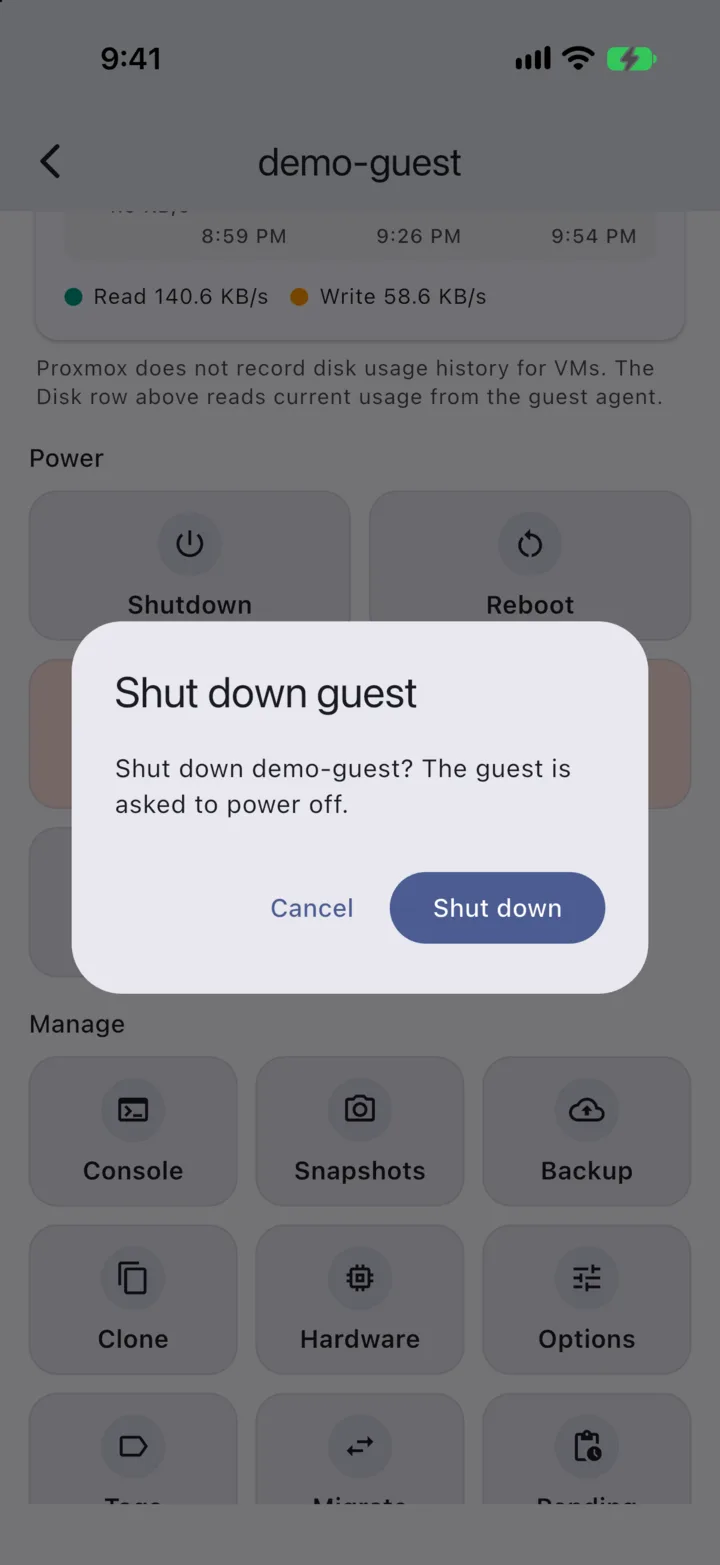
| Shutdown | Asks the guest to shut down cleanly. For a VM this is like pressing a computer's power button: the operating system has to respond. | Shut down guest: Shut down name? The guest is asked to power off. |
| Reboot | Shuts the guest down and starts it again. Proxmox applies any pending changes on the way. VisorMon follows the reboot until the guest is back (see below). | Reboot guest: Reboot name? |
| Stop | Powers the guest off at once, like pulling the plug. Use it when a shutdown does not work. | Stop guest: Stop name? It powers off immediately. |
| Reset | VMs only. Restarts the VM at once, like pressing a computer's reset button. | Reset guest: Hard-reset name? Unsaved work inside the guest is lost. |
| Suspend | Pauses the guest. It keeps its memory and carries on where it stopped when you tap Resume. Proxmox marks suspending a container as experimental. | Suspend guest: Suspend name? It stays in RAM until you resume it. |
| Resume | Carries on a paused guest. | No |
Each dialog has Cancel and a button named after the action. After the action, VisorMon waits a moment and reloads the page. If Proxmox refuses, the reason appears at the bottom of the screen and in a box under the buttons. While an action is running, the power buttons are grayed out.
All power actions need the VM.PowerMgmt privilege on the guest. Without it the buttons are grayed out with No power permission on this VM (or container).
Following a reboot
After Reboot, an orange box shows Rebooting VM name… (or container), then Starting name back up… once the guest has gone down. When it is running again, the box turns green and says name has rebooted and is back up.
VisorMon waits up to 5 minutes for a VM and 90 seconds for a container. If the reboot takes longer, it stops waiting and shows a message that starts Reboot did not finish in time. and says whether the guest is still running or still down. The reboot itself carries on in Proxmox.
6.3The console
Tap Console to open the guest's console full screen, titled with the guest's name, for example web01 console. A VM opens its screen, the same one the Proxmox web interface shows. A container opens a text terminal. The phone's screen stays on while a console is connected.
The console needs the VM.Console privilege on the guest.
A VM's console
The VM's screen is scaled to fit the phone. A row of keys runs along the bottom; swipe it sideways to see them all.
- ⌨
- Shows or hides the phone's keyboard. What you type is sent to the VM as key presses.
- Esc, Tab, Del, Home, End, PgUp, PgDn, F1 to F12
- The keys a phone keyboard lacks.
- Ctrl, Alt, Win
- Held for the next key you press, then released. The key is highlighted while it is held.
- Ctrl-Alt-Del
- Sends Ctrl+Alt+Del, for example to reach a Windows sign-in screen.
- ↑ ↓ ← →
- Arrow keys. Hold one to repeat it.
Touch the screen to use the VM's mouse: a tap is a left click, a two-finger tap a right click, and dragging with one finger drags with the left button held. A keyboard connected to the phone also works, including shortcuts such as Ctrl+C.
The refresh button at the top (Reload console) connects again. If the connection drops, a red strip at the top says why, with Reconnect.
A container's console
A container's console is a terminal attached to the container. It shows the container's own login prompt, so sign in with an account inside the container, for example root and the password set when the container was created.
Proxmox only opens container consoles for accounts signed in with a username and password. If you signed in with an application programming interface (API) token, VisorMon shows Container consoles need a username and password login. Proxmox does not allow API tokens to open LXC shells. instead.
The terminal is the same one VisorMon uses for a node's shell, and its tools work the same way; see Nodes for the details. In short:
- The row of keys along the bottom has ⌨, Esc, Tab, Ctrl (for the next key), ^C, Paste, Copy, Select, Cmds, the arrow keys, |, ~, /, -, \, Home, End, PgUp and PgDn.
- Copy copies the selected text, or the whole screen if nothing is selected. Turn on Select and drag to select. Paste types the phone's clipboard into the terminal; pasting several lines into a shell that would run each one as it arrives asks Paste n lines? first.
- Cmds opens your saved commands.
- At the top, the magnifier (Find in output) searches what the terminal has printed, and the More menu has Text size and Share log.
- A strip above the terminal shows how many lines of history it keeps, with Change in Settings.
- Going back, or reloading, while the terminal is connected asks first: Close the terminal? or Reload the terminal?, because anything still running in it stops.
- If the connection drops, a red strip says why, with Reconnect. What the terminal printed stays readable above the new session.
The console lock
You can make VisorMon ask for Face ID, Touch ID or your passcode (on Android, your fingerprint, face or screen lock) before any console or node shell opens. Turn on Face ID for consoles in Settings; see Settings. On Android the switch is called Biometric lock for consoles, and it appears only when the phone has a fingerprint or face set up. Turning it on or off asks too, so someone holding your unlocked phone cannot switch it off.
With the lock on, tapping Console shows Unlock to open name console and asks the phone to confirm it is you. Nothing connects to the server until it does. If you cancel, the console stays closed with Unlock to try again. On a phone with no passcode and no biometrics, VisorMon cannot ask, so it offers Open without unlocking instead.
When the console does not open
- Read-only mode is on. Proxmox opens a console through a request that VisorMon counts as a change, so read-only mode blocks it with Read only is on. Turn it off in Settings to make this change.
- You are in the demo. The sample data has no live console: Sample data has no live console. Sign in to a Proxmox server to open one.
- A container, with an API token. See A container's console.
- No permission. The Console button is grayed out without
VM.Console.
6.4Snapshots
A snapshot saves the state of a guest's disks so you can go back to it later, for example before an upgrade. Snapshots lists the guest's snapshots, newest first, with each one's description and age. Pull down to refresh the list.
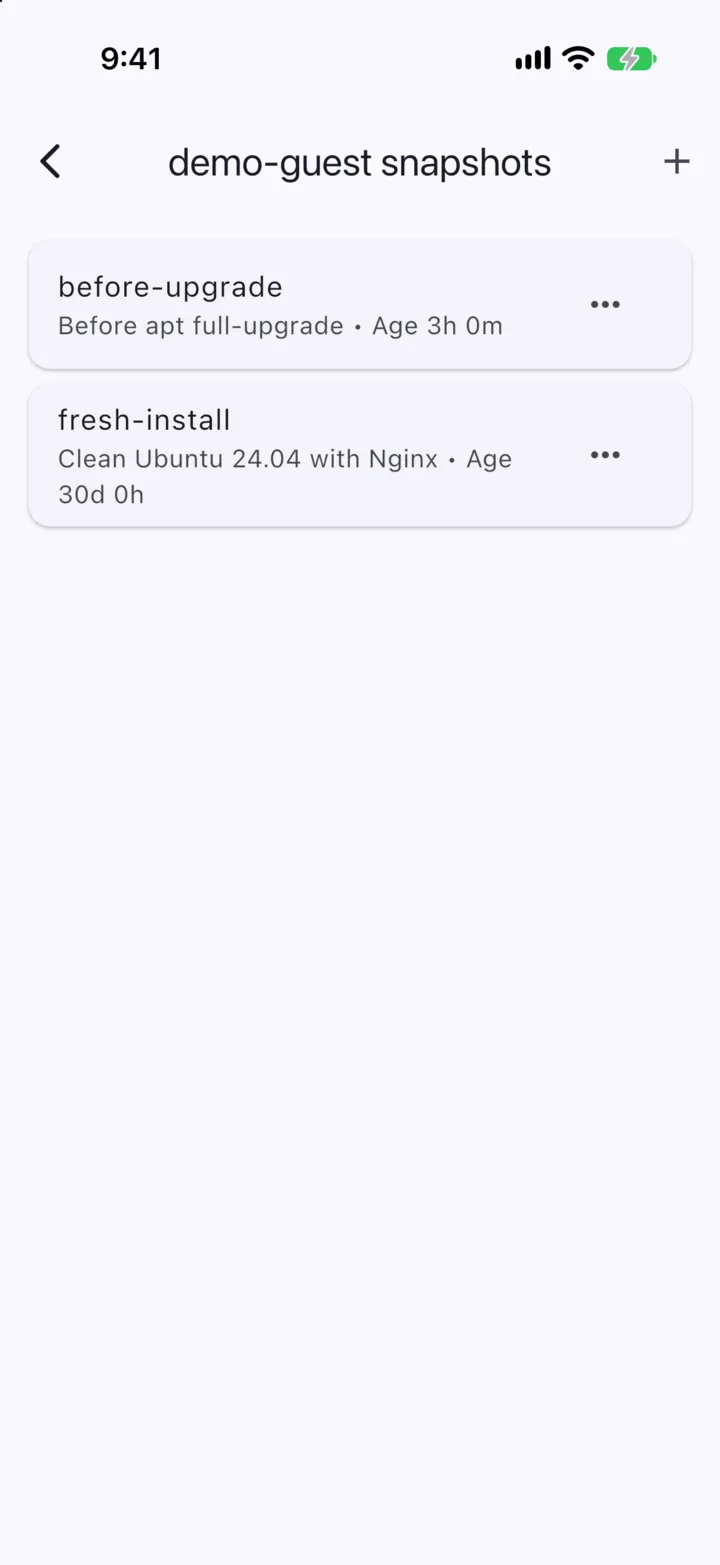
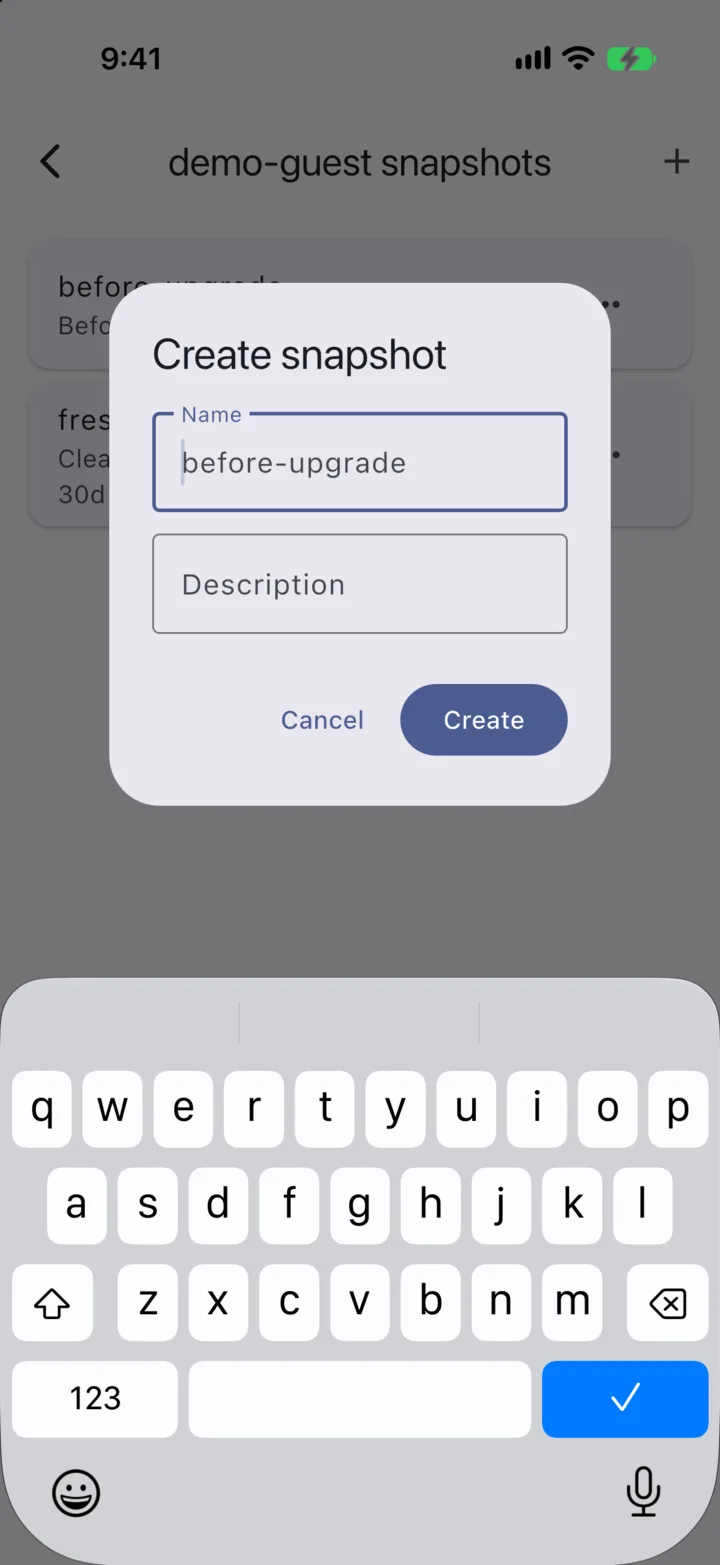
To create a snapshot:
- Tap + (Create snapshot) at the top.
- Enter a Name and, if you like, a Description. Proxmox accepts names of 2 to 40 characters that start with a letter and use only letters, numbers,
-and_. - Tap Create. VisorMon confirms with Snapshot name created.
Snapshots made in VisorMon save the disks only, not a running VM's memory (RAM).
To roll back: tap the menu button beside a snapshot and choose Rollback. VisorMon asks Roll name back to snapshot? Current disk state is replaced.; tap Rollback. Everything written to the guest's disks since the snapshot is lost. Proxmox stops the guest if it is running, and leaves it stopped afterwards unless the snapshot includes the VM's memory; start it again with Start.
To delete a snapshot: tap the menu button and choose Delete, then confirm Delete snapshot name? with Delete. The guest itself is not changed.
Creating, rolling back and deleting all need the VM.Snapshot privilege. Without it the + button is grayed out and the menu buttons are hidden.
6.5Backup and restore
Backup backs the guest up to a storage on its node, and lists the backups of this guest that are already there.
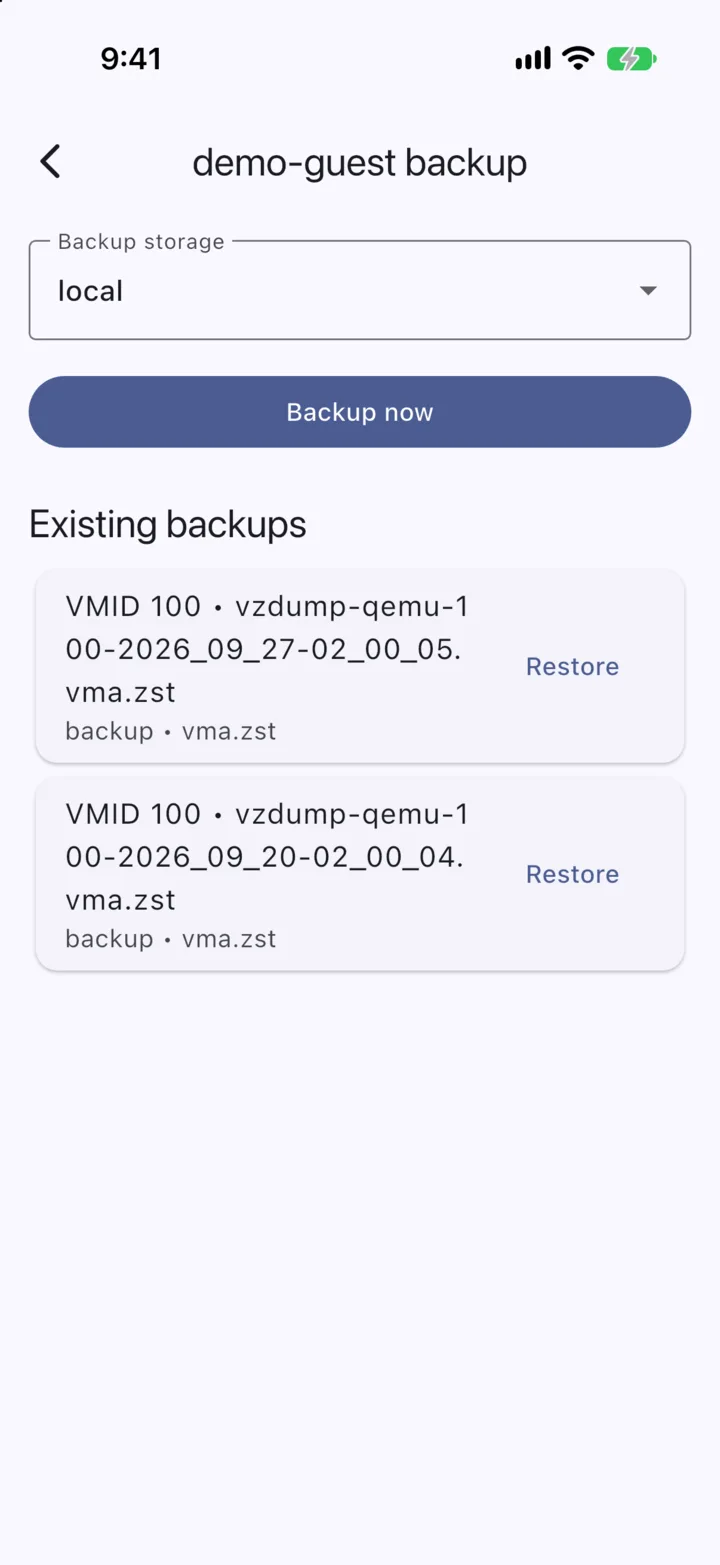
To back up a guest:
- Choose a Backup storage. Only storages on the guest's node that accept backups are listed.
- Tap Backup now. VisorMon does not ask first. It starts a backup in snapshot mode, compressed with Zstandard (
zstd), and says Backup started. Follow it in Tasks.
The backup runs on the server as a task; follow it under Tasks on the guest's page or in cluster tasks (see Search, tasks and alerts).
Existing backups lists this guest's backups on the chosen storage. Choose another storage to see the backups there.
Backing up needs VM.Backup on the guest. Without it, a lock box says No backup permission on this VM and Backup now is grayed out. Proxmox also checks Datastore.AllocateSpace on the backup storage.
Restoring a backup
VisorMon restores a backup as a new guest, with the next free VMID. The original guest is not touched, and the new one gets new media access control (MAC) addresses for its network cards, so the two can run side by side.
- Tap Restore beside a backup.
- VisorMon asks Restore backup as a new VM with VMID n? The original guest is left unchanged. (CT for a container).
- Check the Disk storage, where the new guest's disks go (see below).
- Tap Restore. VisorMon says Restore started as VMID n. The restore runs as a task.
Disk storage is not the Backup storage: one is where the backup is kept, the other is where the restored guest's disks are written. The menu lists only storages on the guest's node that can hold them, those whose content in Proxmox includes Disk image (for a VM) or Container (for a container). A Proxmox Backup Server storage is never listed, and neither is a directory storage such as local that holds only ISO images, templates and backups.
- A VM starts on Original storage: Each disk goes back to the storage it was on when the backup was made. Choose a storage instead to put every disk of the new VM there.
- A container always needs a storage, because Proxmox puts all of a restored container's volumes on one storage. VisorMon starts on the storage that holds the container's root disk now, or, if that one cannot hold containers, the first one that can. If no storage on the node can, the dialog says No storage on node can hold container volumes. and Restore is grayed out.
Restoring needs VM.Allocate. Proxmox also checks Datastore.AllocateSpace on the storage the disks go to.
6.6Clone
Clone makes a new guest from this one. The original is not changed.
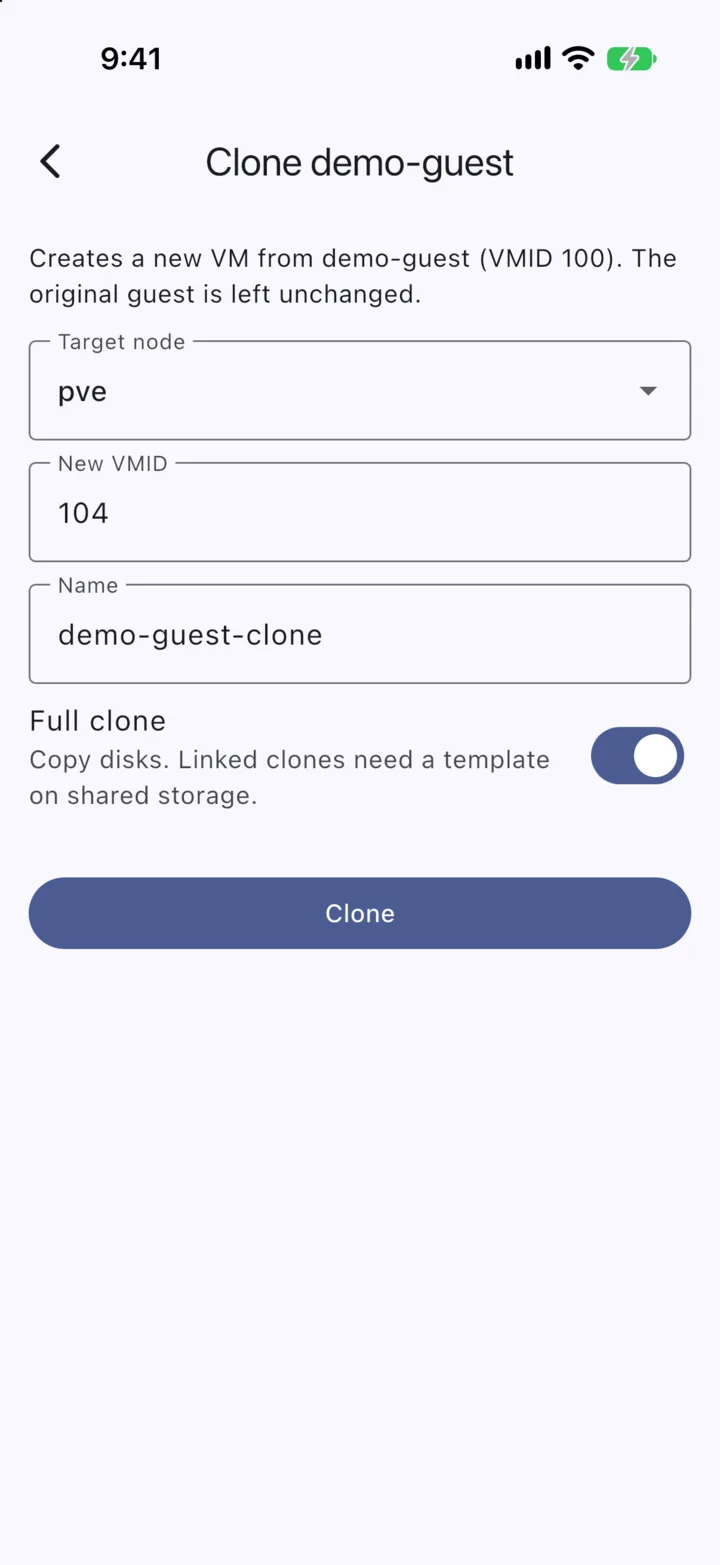
- Check the Target node. It starts as the guest's own node. Proxmox only allows another node when the guest's disks are on shared storage.
- Check the New VMID. The next free one is filled in.
- Check the Name (Hostname for a container). It starts as the guest's name with
-cloneadded. Names start with a letter or number and use only letters, numbers and hyphens, up to 63 characters. If you clear the field, Proxmox picks a name. - Leave Full clone on to copy the disks. Turning it off asks for a linked clone, which shares the source's disks; Proxmox only makes linked clones of templates.
- Tap Clone. VisorMon does not ask first.
The button shows Cloning… until the new guest appears in the cluster, for up to 3 minutes. VisorMon then says Cloning name to VMID n. and returns to the guest's page. Copying the disks can take longer; follow the clone task in Tasks.
The Clone button appears only if your account may clone some guest, and works on this guest with VM.Clone. Proxmox also checks VM.Allocate for the new VMID and Datastore.AllocateSpace on the storage the copy goes to.
6.7Migrate
Migrate moves the guest to another node in the cluster. The screen says how: an online migration for a running VM, a restart migration for a running container, or an offline one for a stopped guest.
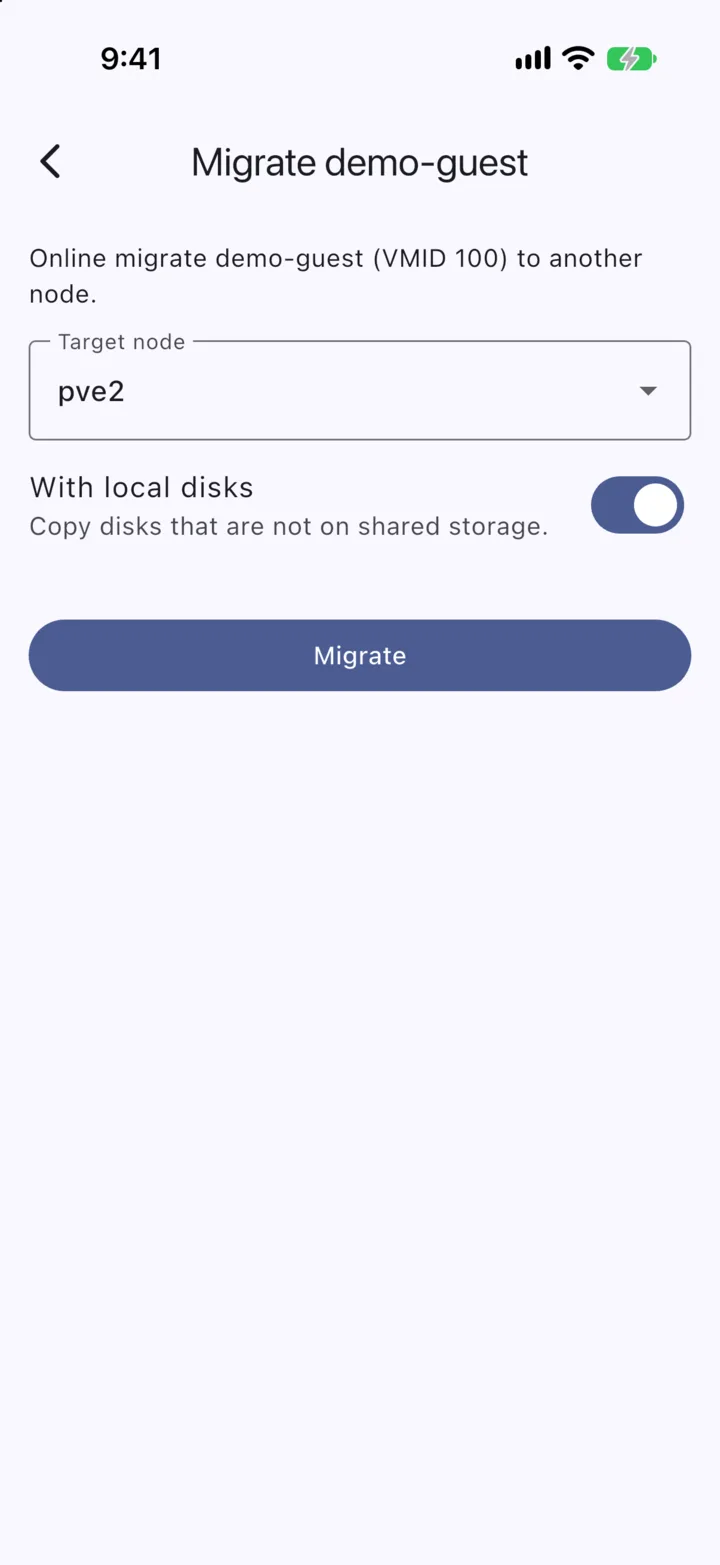
- Choose the Target node. Only other nodes that are online are listed. On a single node, VisorMon says Migration needs another online node in the cluster.
- For a VM, leave With local disks on to copy disks that are not on shared storage. A container has no such switch: Proxmox copies its local volumes on its own.
- Tap Migrate, and confirm Migrate name to node? The guest moves to that node. with Migrate.
VisorMon says Migrating name to node. and returns to the guest's page. The migration runs as a task.
The Migrate button appears only if your account may migrate some guest, and works on this guest with VM.Migrate.
6.8Hardware
Hardware changes the guest's name, cores and memory, and lists its disks and network devices.
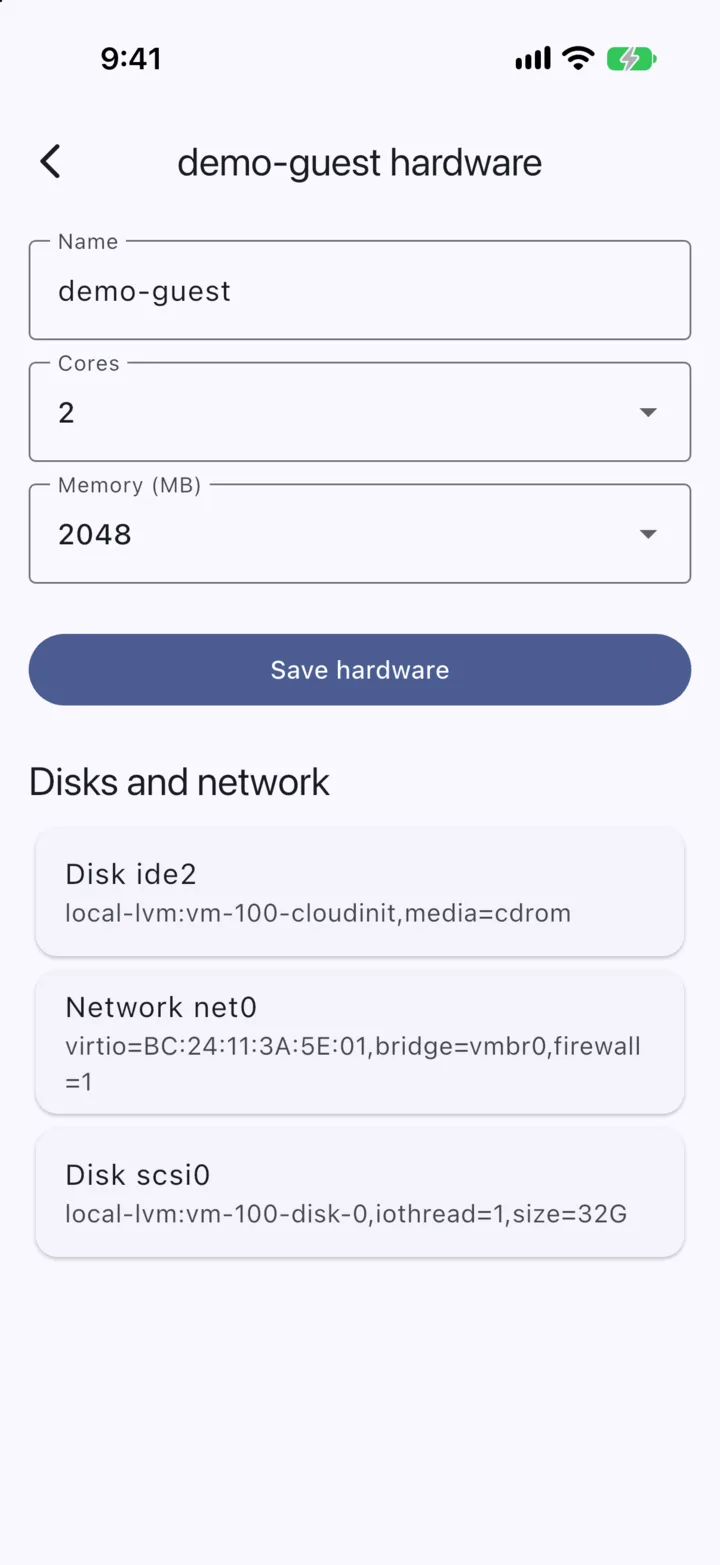
- Name (Hostname for a container): starts with a letter or number and uses only letters, numbers and hyphens, up to 63 characters.
- Cores: 1, 2, 4, 8 or 16, or the guest's current number.
- Memory (MB): 512, 1024, 2048, 4096 or 8192, or the guest's current amount.
Tap Save hardware. For a running guest VisorMon says Hardware saved. Some changes apply after reboot.; changes Proxmox cannot make while the guest runs wait in Pending changes.
Disks and network lists each disk, mount point, network card and passthrough device with its settings, for reference. Change those in the Proxmox web interface.
VisorMon lets you edit these fields if your account has any of VM.Config.Disk, VM.Config.CPU, VM.Config.Memory, VM.Config.Network, VM.Config.HWType or VM.Config.CDROM on the guest; otherwise a lock box says Read-only on this VM. Saving sends all three values, and Proxmox checks each: cores need VM.Config.CPU, memory VM.Config.Memory, a VM's name VM.Config.Options and a container's hostname VM.Config.Network.
6.9Options
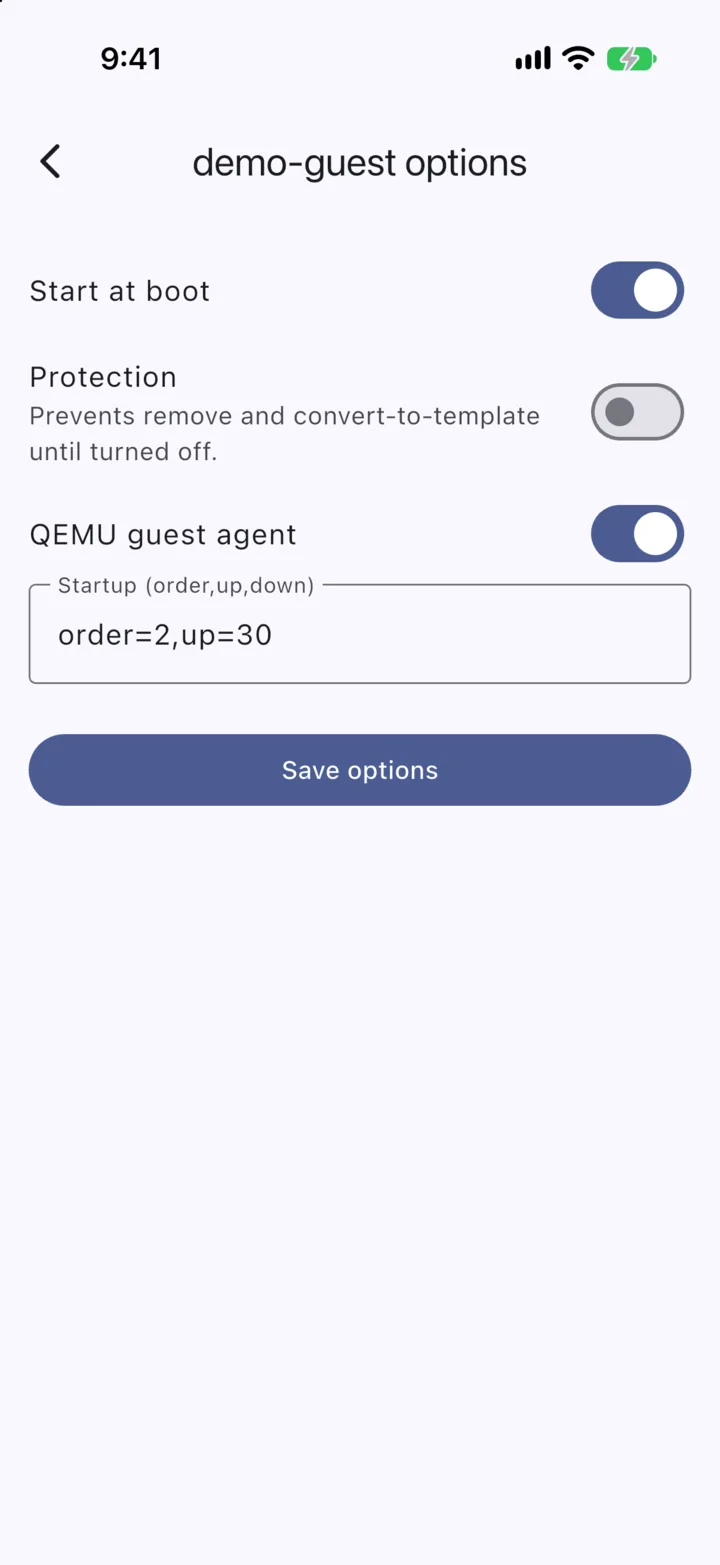
- Start at boot
- Starts the guest when its node starts.
- Protection
- While it is on, Proxmox refuses to remove the guest or its disks.
- QEMU guest agent
- VMs only. Tells Proxmox the VM runs the guest agent, which VisorMon needs to show a VM's disk usage. The agent also has to be installed in the VM. Proxmox applies the change the next time the VM starts, or after Reboot. Turning it on or off keeps the agent's other settings made in the Proxmox web interface, such as its type.
- Startup (order,up,down)
- The guest's place in the boot order and its delays, for example
order=1,up=30. Leave it empty to remove the setting.
Tap Save options. VisorMon sends only the options you changed and says Options saved. If nothing changed, it says No changes to save.
Options need VM.Config.Options on the guest. For a VM, Proxmox also checks Sys.Modify on / when the startup setting changes, so changing or emptying a VM's Startup (order,up,down) needs both.
6.10Tags
Tags are short labels, such as prod or web, that help you group guests. The Guests tab and cluster search can filter and group by them; see Guests and Search, tasks and alerts.
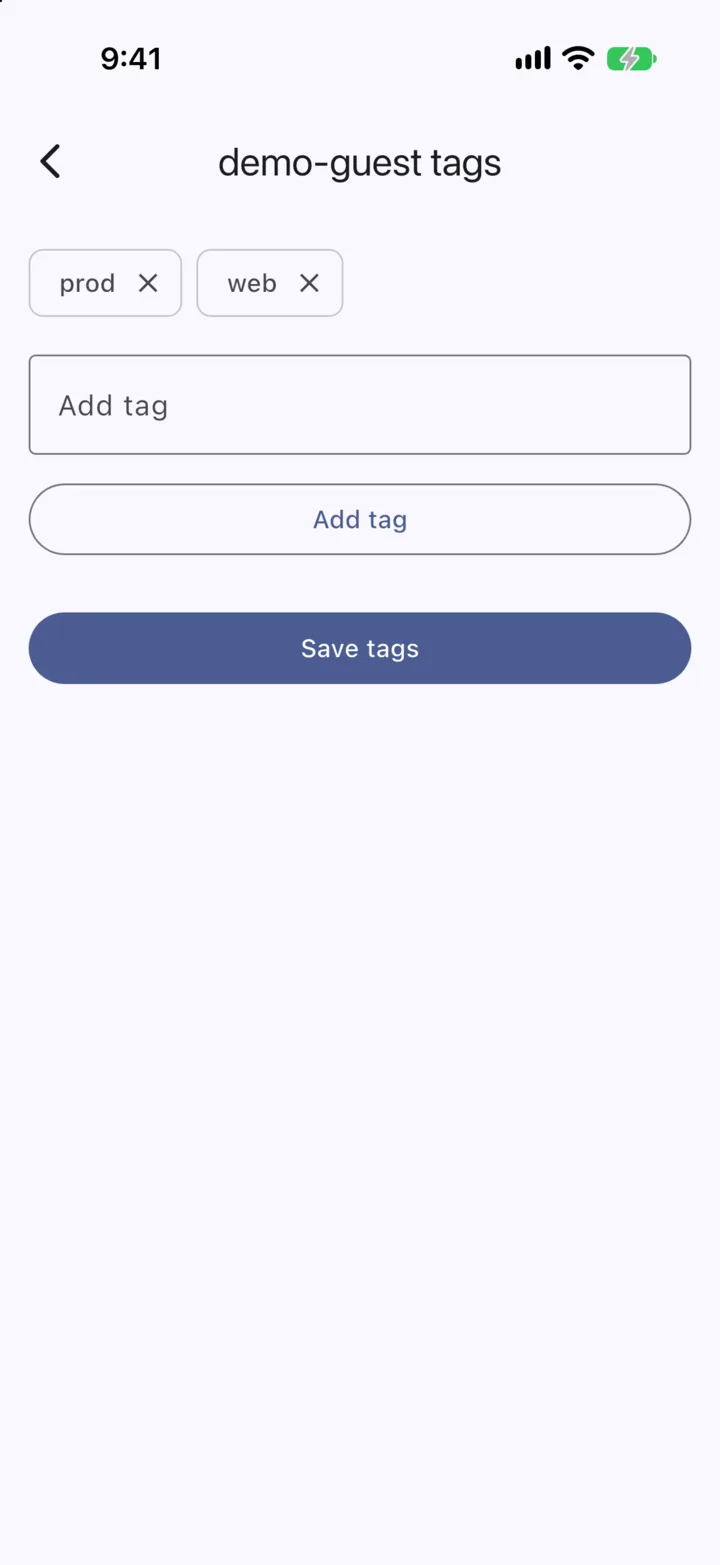
- Type a tag in Add tag and tap Add tag. Tags start with a letter or number and use only letters, numbers,
_and-, up to 64 characters. - Remove a tag with the × on its chip.
- Tap Save tags. Nothing changes on the server until you do. VisorMon says Tags saved.
Tags need VM.Config.Options. Depending on your datacenter's tag settings, Proxmox may also require Sys.Modify on / for some tags.
6.11Pending changes
Some changes cannot be made while a guest is running, such as more memory for a VM without memory hotplug. Proxmox keeps them as pending changes and applies them when the guest is next started, or rebooted with Reboot.
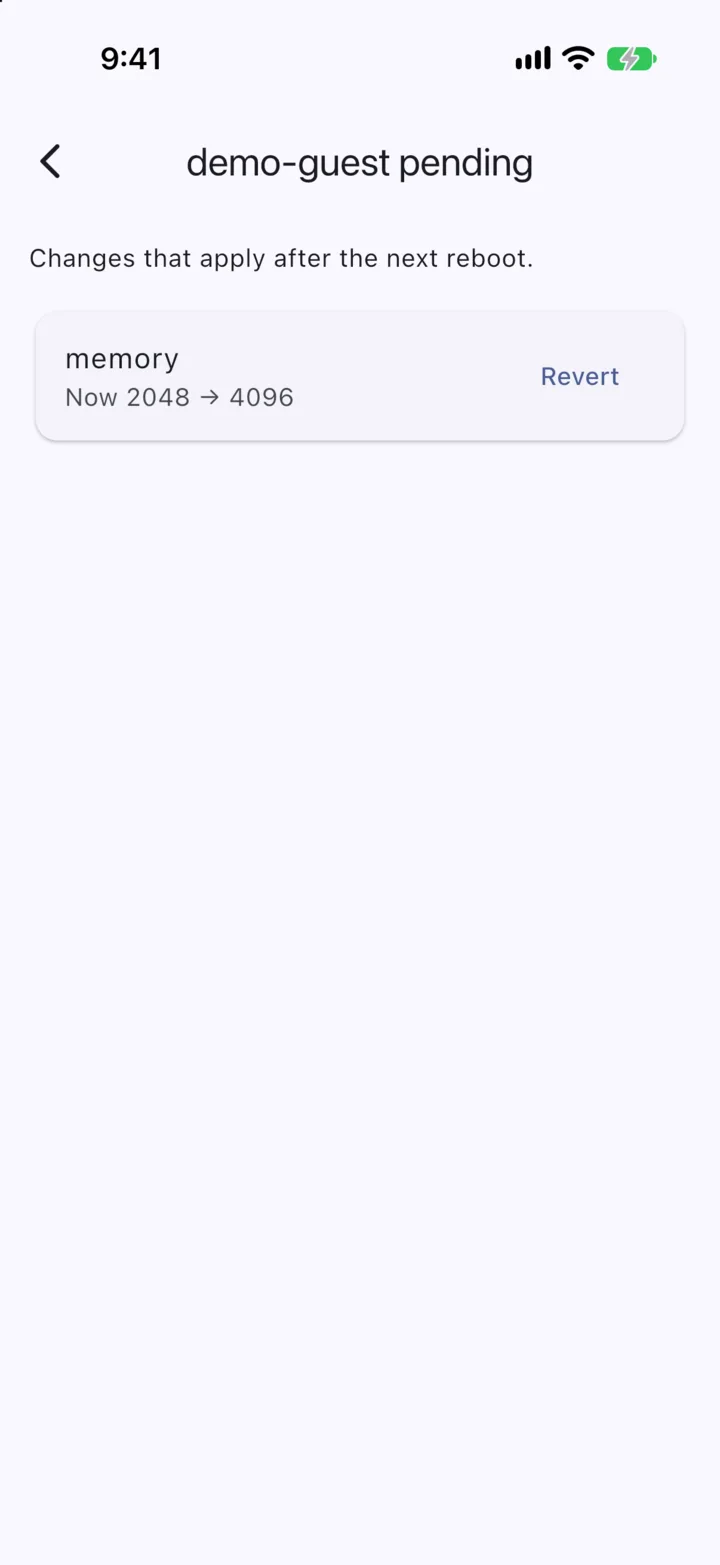
Pending lists each waiting change by its Proxmox setting name, with its current value and what it will become, for example Now 2048 → 4096, or Will delete for a setting that will be removed. With no changes waiting it says No pending changes.
To cancel a change, tap Revert and confirm Revert setting on name? The pending value is discarded. with Revert. VisorMon enables Revert when your account has VM.Config.Options on the guest.
6.12Cloud-Init
Cloud-Init sets up a VM's user, network and keys from settings Proxmox writes to a small Cloud-Init drive. VMs only; the VM needs a Cloud-Init drive and an image that runs Cloud-Init.
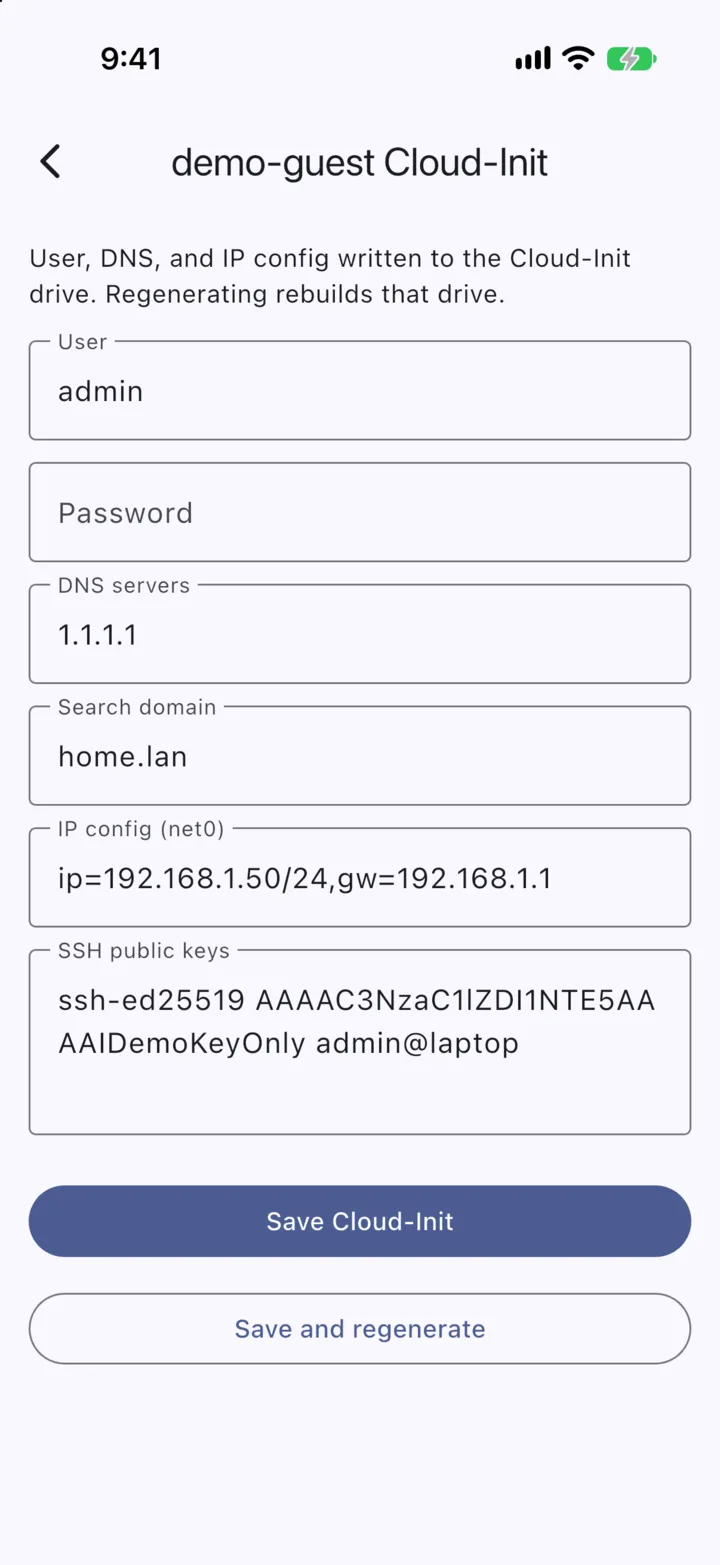
- User
- The user Cloud-Init sets up, instead of the image's default user.
- Password
- That user's password. Leave it blank to keep the current one.
- DNS servers
- Domain Name System (DNS) servers, separated by spaces, for example
1.1.1.1 8.8.8.8. - Search domain
- The domain to search for short host names.
- IP config (net0)
- The address of the VM's first network card, for example
ip=dhcporip=192.168.1.50/24,gw=192.168.1.1. - SSH public keys
- Secure Shell (SSH) keys to allow, one per line.
Emptying a field (other than Password) removes that setting.
- Save Cloud-Init saves the settings: Cloud-Init saved.
- Save and regenerate also rebuilds the Cloud-Init drive, after asking Save Cloud-Init and regenerate the drive for name? Tap Regenerate.
Cloud-Init needs VM.Config.Cloudinit on the VM; otherwise a lock box says Read-only on this VM and the buttons are grayed out.
6.13Firewall
Firewall controls the guest's own Proxmox firewall. It only filters the guest's traffic when the firewall is also on for the datacenter and on the guest's network card.
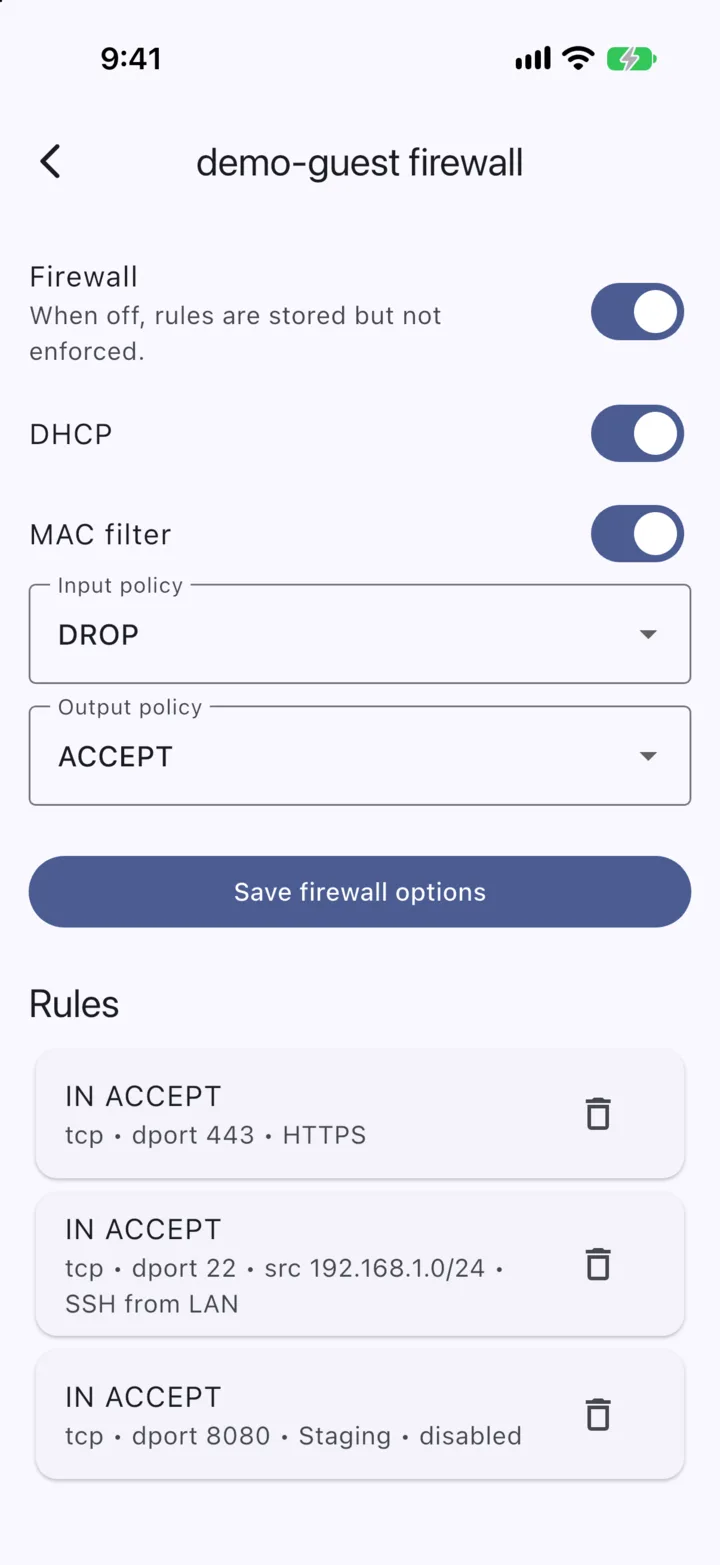
- Firewall
- Turns the guest's firewall on or off. When it is off, the rules are kept but not enforced.
- DHCP
- Lets Dynamic Host Configuration Protocol (DHCP) traffic through, so the guest can get an address.
- MAC filter
- Drops traffic the guest sends from MAC addresses other than its own.
- Input policy, Output policy
- What happens to traffic no rule matches:
ACCEPT,DROPorREJECT.
Tap Save firewall options. VisorMon says Firewall options saved.
Rules
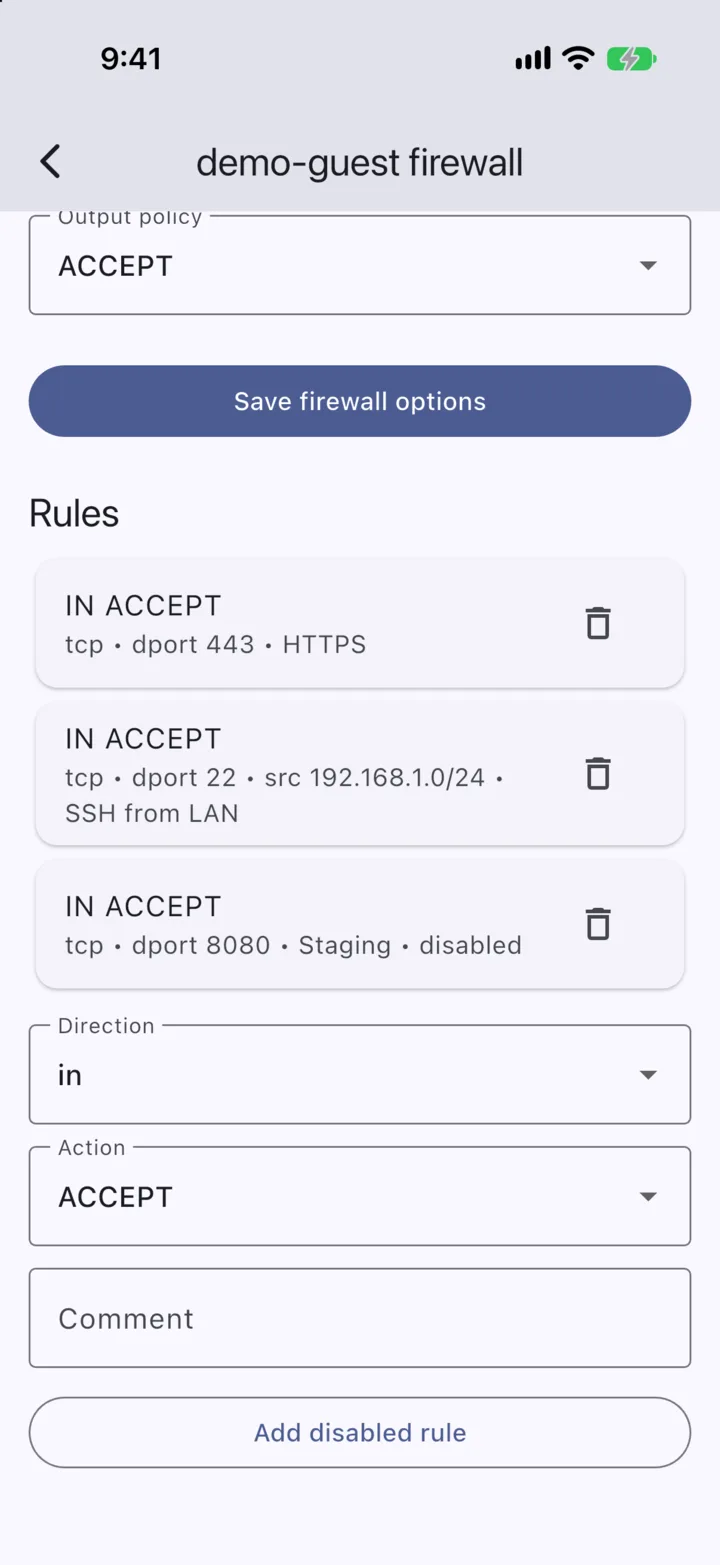
Rules lists the guest's rules in order. Each shows its direction and action, for example IN ACCEPT, and its details: macro, protocol, interface, ports, source and destination, comment, and disabled if it is switched off.
- To delete a rule, tap its trash button and confirm This guest firewall rule is removed. The guest keeps running. with Delete.
- To add a rule, choose a Direction (
inorout) and an Action, type a Comment, and tap Add disabled rule. If you leave the comment empty, VisorMon usespgui.
New rules are added switched off, so a mistake cannot cut off access. They have no protocol or port, so they would match all traffic in their direction. Edit and enable them in the Proxmox web interface.
Changing the firewall needs VM.Config.Network on the guest; otherwise a lock box says Read-only on this VM.
6.14Convert to template
A template is a guest you clone new guests from. It cannot be started. Convert to template turns this guest into one.
- Stop the guest. If it is running, VisorMon says Stop the guest before converting it to a template.
- Proxmox refuses to convert a guest that has snapshots, so delete them first in Snapshots.
- Tap Convert to template. VisorMon asks Convert name (VMID n) to a template? This cannot be undone. Clone first if you still need a runnable guest. Tap Convert.
VisorMon says name is now a template. The page then shows template and has no Power section.
The button appears only if your account may create guests, and works on this guest with VM.Allocate.
6.15Notes and tasks
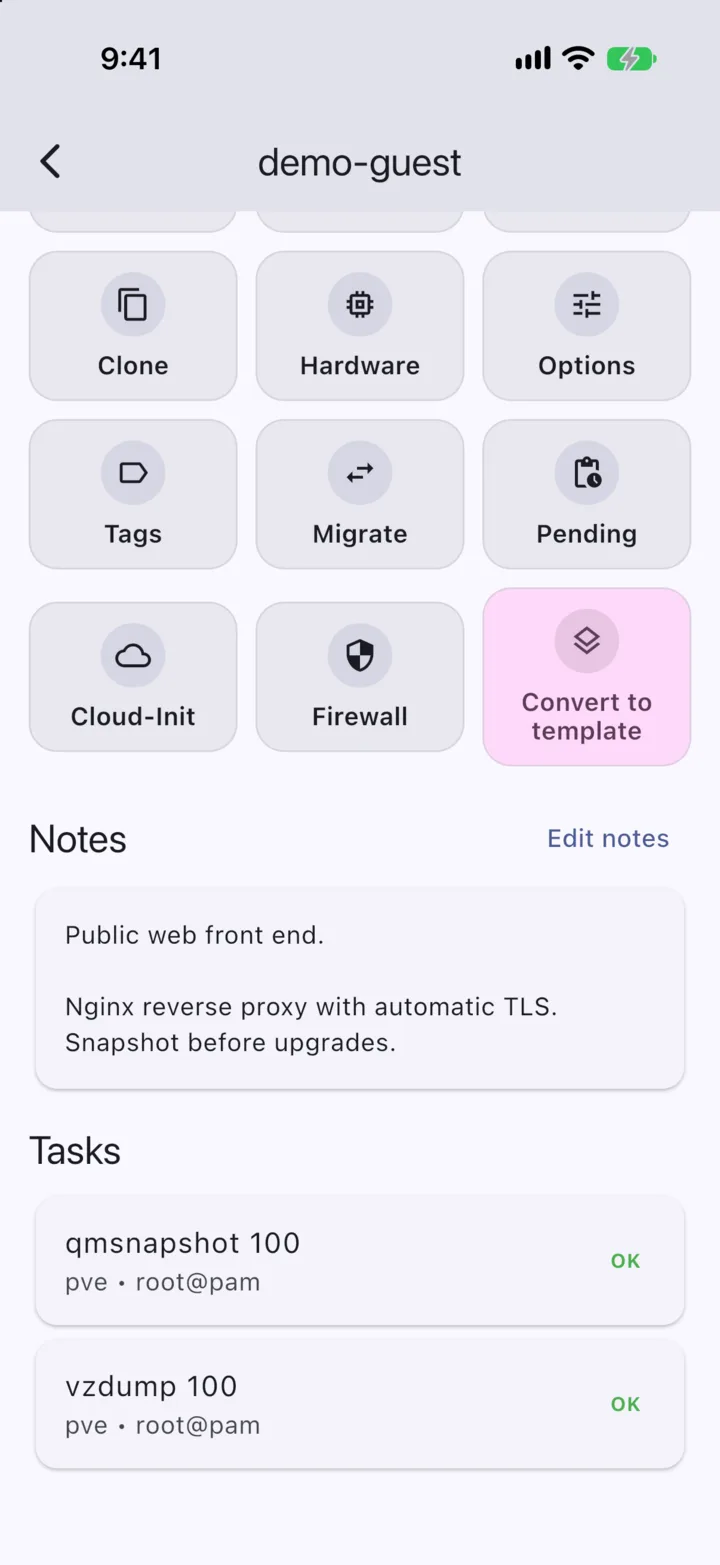
Notes shows the guest's notes from Proxmox, or No notes. VisorMon shows them as plain text, so Markdown formatting appears as typed; notes written in HTML are shown formatted.
To change them, tap Edit notes, edit the text and tap Save. Editing notes needs VM.Config.Options; without it Edit notes is grayed out.
Tasks lists up to 12 of the guest's recent tasks from the cluster's task list, newest first, such as vzdump 100 for a backup. Each shows its node and user and its result: running, OK, or the error in red. Tap a task to read its log; see Search, tasks and alerts. With nothing recent, it says No recent tasks for this guest.
6.16Creating a VM or container
VisorMon creates a simple VM or container with one disk and one network card. For anything more, such as more disks, a CPU type or passthrough, use the Proxmox web interface, or change the guest afterwards.
On the Guests tab, tap + and choose Create VM or Create container. With the VMs or Containers chip on, + goes straight to that form. The + button only appears if your account may create guests; see Guests.
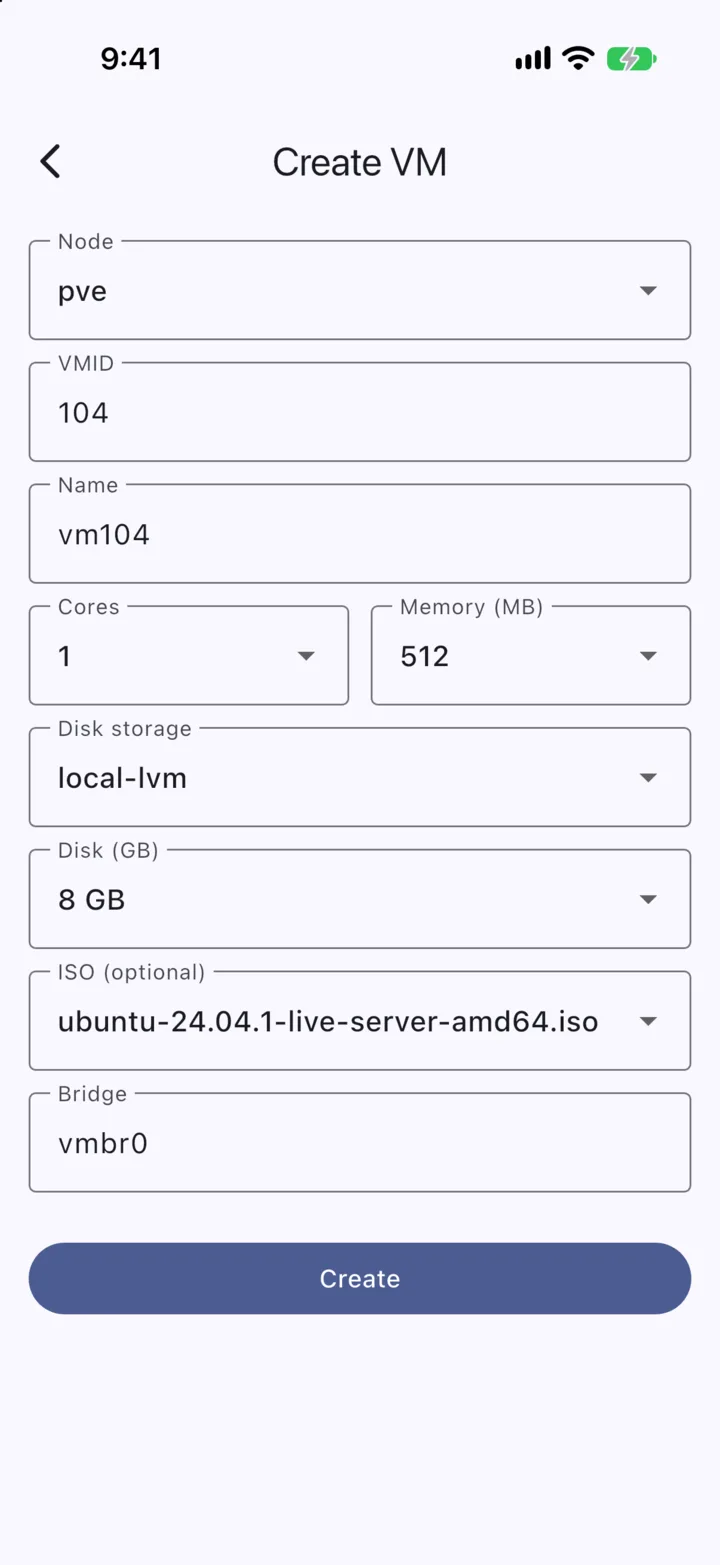
The form is titled Create VM or Create CT. Its fields, with what they start as:
| Field | Starts as | Notes |
|---|---|---|
| Node | The first node | Changing it reloads the storages and images for that node. |
| VMID | The next free VMID | |
| Name (VM) or Hostname (container) | vm or ct and the VMID, for example vm105 | Starts with a letter or number; letters, numbers and hyphens, up to 63 characters. |
| Cores | 1 | 1, 2, 4 or 8. |
| Memory (MB) | 512 | 512, 1024, 2048 or 4096. |
| Disk storage | The first storage on the node that holds disks | For a VM, storages that accept disk images; for a container, also those that accept container disks. |
| Disk (GB) | 8 GB | 4, 8, 16 or 32 GB. |
| ISO (optional) | The first ISO image found on the node | VMs only. A CD or DVD image to start from. Choose None for no image. Not shown if the node has no ISO images. |
| Template | The first container template found on the node | Containers only, and required. Without any, the form says No container templates found on this node. |
| Root password | Empty | Containers only. At least 5 characters. |
| Bridge | vmbr0 | The network bridge for the network card. |
Tap Create. VisorMon does not ask first. If something is missing it says Enter a valid name and choose node and storage. or, for a container, Containers need a template and a password of at least 5 characters.
What VisorMon creates
- A VM set up for Linux, with a VirtIO SCSI disk of the chosen size on the chosen storage, a VirtIO network card on the bridge, and the ISO image, if any, in a CD drive.
- A container that is unprivileged, from the chosen template, with a root disk of the chosen size, the root password you entered, and a network card
eth0on the bridge that gets its address by DHCP.
VisorMon says Creating name (VMID n). and returns to the Guests tab. Proxmox creates the guest as a task, and the new guest is not started. Open it and tap Start when it appears.
Creating a guest needs VM.Allocate. Proxmox also checks Datastore.AllocateSpace on the disk storage.
6.17Permissions, read-only mode and VisorMon Pro
VisorMon reads your Proxmox account's permissions and hides or grays out what you may not do. Until it has read them, or if it cannot, it offers everything and leaves the decision to Proxmox. A lock box saying Read-only on this VM on one of the guest's screens means your account may not change that screen's settings. It is not the same as VisorMon's read-only mode.
Privileges by action
A privilege counts when it is granted on the guest (for example on /vms/100), on its pool, or higher up, such as on /, unless the table names another path. For what privileges and roles are, see Security and privacy.
| Action | VisorMon looks for | Proxmox also checks |
|---|---|---|
| See the guest's page | VM.Audit | |
| See the history charts | VM.Audit | |
| See a VM's disk usage | VM.GuestAgent.Audit or VM.GuestAgent.Unrestricted on current Proxmox VE | |
| Start, Shutdown, Reboot, Stop, Reset, Suspend, Resume | VM.PowerMgmt | |
| Console | VM.Console | A password sign-in, for a container |
| Create, roll back or delete a snapshot | VM.Snapshot | Proxmox also accepts VM.Snapshot.Rollback for a rollback, but VisorMon shows the menu only with VM.Snapshot |
| Backup now | VM.Backup | Datastore.AllocateSpace on the backup storage |
| Restore a backup | VM.Allocate | Datastore.AllocateSpace on the target storage |
| Clone | VM.Clone | VM.Allocate for the new VMID, Datastore.AllocateSpace |
| Migrate | VM.Migrate | |
| Save hardware | Any of VM.Config.Disk, VM.Config.CPU, VM.Config.Memory, VM.Config.Network, VM.Config.HWType, VM.Config.CDROM | VM.Config.CPU and VM.Config.Memory, plus VM.Config.Options (VM name) or VM.Config.Network (container hostname) |
| Save options | VM.Config.Options | Sys.Modify on /, when a VM's startup setting changes |
| Save tags | VM.Config.Options | Possibly Sys.Modify on /, depending on your datacenter's tag settings |
| Revert a pending change | VM.Config.Options | |
| Save or regenerate Cloud-Init | VM.Config.Cloudinit | |
| Firewall options and rules | VM.Config.Network | |
| Convert to template | VM.Allocate | |
| Edit notes | VM.Config.Options | |
| Create a VM or container | VM.Allocate anywhere | VM.Allocate for the new VMID, Datastore.AllocateSpace on the disk storage |
The Clone, Migrate and Convert to template buttons, and the Guests tab's +, are hidden when your account has that privilege on no guest at all. The root@pam user passes every check.
Read-only mode
With read-only mode on (Read only in Settings), VisorMon sends no changes to your server. Everything on a guest's page that changes something is blocked: power actions, notes, every Save button, snapshots, backups and restores, clones, migrations, converting to a template, firewall rules, reverting pending changes and creating guests. Opening a console is blocked too. You can still tap the buttons, and confirm where VisorMon asks first, but instead of making the change VisorMon shows Read only is on. Turn it off in Settings to make this change. and records the attempt in the audit log. See Security and privacy.
In the demo, changes are not sent either; VisorMon says This is sample data. Nothing was sent.
VisorMon Pro
Nothing on a guest's page needs a separate purchase. Using VisorMon with a real Proxmox server needs the free trial or VisorMon Pro, and that covers everything in this chapter; see VisorMon Pro.