VisorMon User Guide
Chapter 7
Storage
Your storage, what is on it, and what you can do with it.
7.1The Storage tab
The Storage tab lists each storage on your Proxmox VE servers and how full it is. Tap a storage to see what is on it.
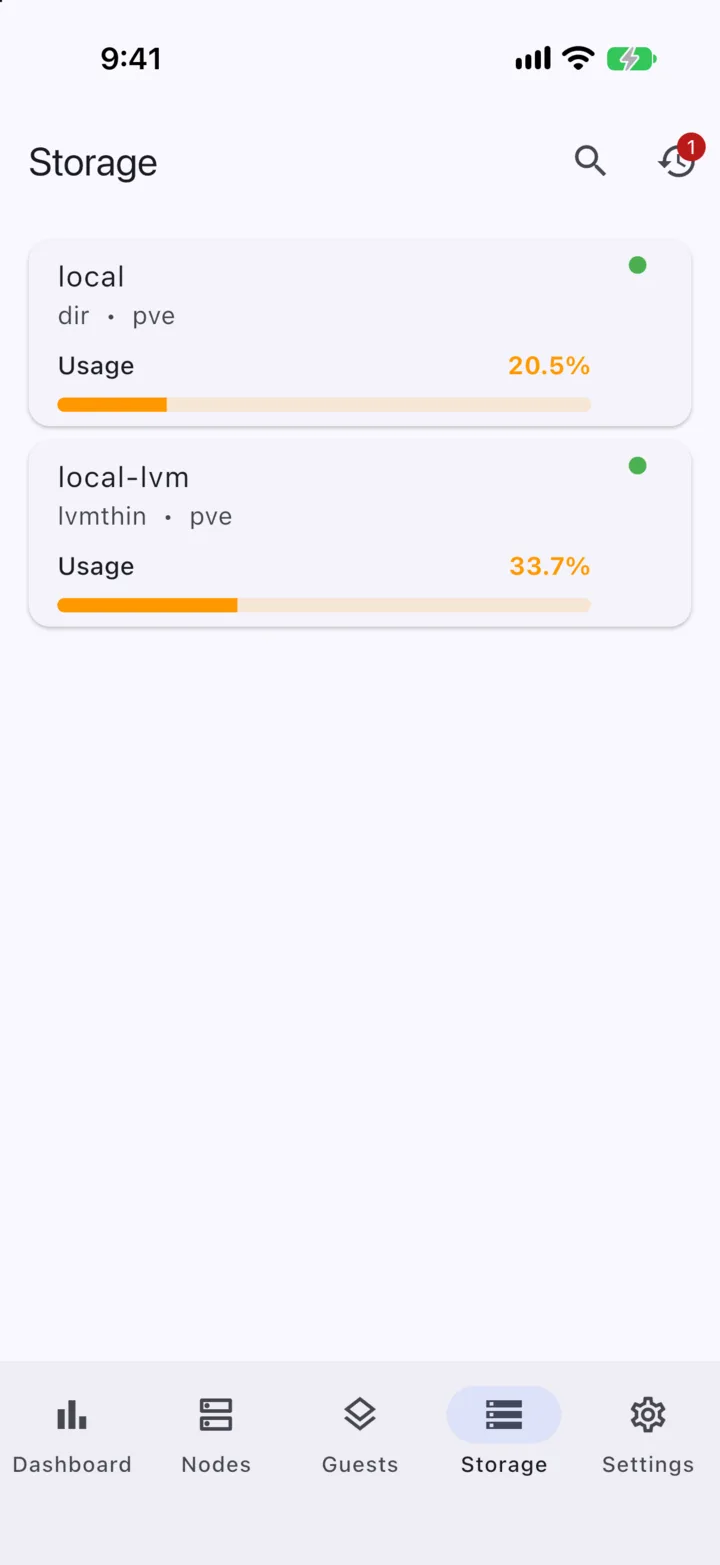
Each storage has a card:
- Name
- The storage's ID in Proxmox, such as
localorlocal-lvm. - Type and node
- The storage type as Proxmox names it, then the node the card is for, for example dir • pve or lvmthin • pve.
- Usage
- How much of the storage is used, as a percentage and an orange bar.
- Dot
- Green when Proxmox has current figures for the storage. Red when it has none, for example because the node is offline or the storage can't be reached. A storage with a red dot usually shows 0.0%, because there are no figures to show.
Cards are in alphabetical order by name.
Proxmox reports storage per node, so VisorMon lists a storage once for each node that can use it. A storage shared by several nodes, such as a network share or a Ceph pool, appears once per node, and so does local, which is separate on each node. VisorMon does not mark which storages are shared. For the space used across the whole cluster, with each shared storage counted once, see the Resources pane in The dashboard.
Keeping the list up to date
The list is loaded when VisorMon connects to your server, and it does not refresh on a timer. Pull down on the list to update it.
The buttons at the top right switch servers, search the cluster and open the cluster's tasks. See Search, tasks and alerts.
When the list is empty
- No permission
- This storage list is blank because you don't have permission to view it. Your account has no storage privileges, or Proxmox turned down part of the request. Tap Retry after the permissions are fixed.
- No storage in your scope
- No datastores are visible to this account. The request worked, but Proxmox returned no storage for this account.
- An error message
- VisorMon could not reach the server or the server returned an error. Tap Retry. For help, see Troubleshooting.
To see a storage, your account needs Datastore.Audit on it: on /storage/<storage ID>, or on a path above it such as /storage or /. The built-in PVEAuditor role includes it. You set roles under Datacenter › Permissions in the Proxmox web interface.
7.2A storage's contents
Tap a card on the Storage tab to open that storage. You can also open one from cluster search (see Search, tasks and alerts).
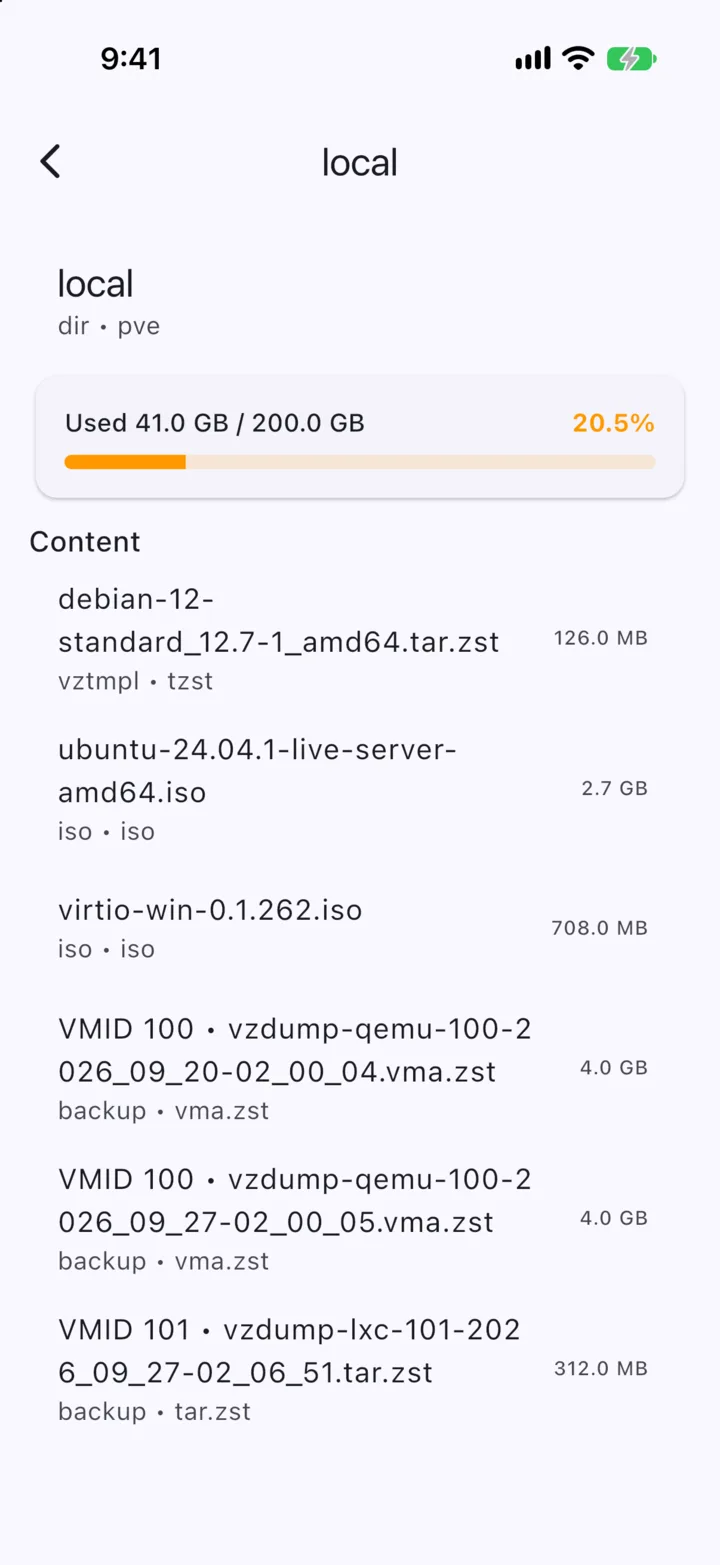
The screen shows:
- The storage's name, with its type and node below it.
- A card with the space used and the total, for example Used 41.0 GB / 200.0 GB, and the percentage used.
- Under Content, everything Proxmox reports on the storage, in alphabetical order.
Each item shows:
- Name
- The file or volume name. A backup's name starts with the ID of the guest it belongs to, for example VMID 100 • vzdump-qemu-100-2026_09_27-02_00_05.vma.zst, so backups sort together under V.
- Details
- The content type, then, for a disk, the ID of the guest it belongs to (VMID), then the format, for example iso • iso, backup • vma.zst or images • VMID 100 • raw.
- Size
- On the right. A dash means Proxmox did not report a size for the item.
VisorMon counts sizes in units of 1,024, so 1 GB here is what Proxmox calls 1 GiB. If the storage holds nothing you can see, the list says No content.
Each card on the Storage tab is for one node, and the contents are read from that node. Opening local on two nodes shows two different lists.
This screen does not refresh. To see changes, go back and tap the storage again. If its node is offline, the contents can't be read and VisorMon shows the error with a Retry button.
Content types
The details line uses Proxmox's own names for the kinds of content:
| Shown as | What it is |
|---|---|
iso | An ISO image, for installing an operating system in a virtual machine (VM) |
vztmpl | A container template |
backup | A backup of a VM or container |
images | A VM's disk, or the disk of a VM template |
rootdir | A container's disk |
Other kinds of content that Proxmox reports are listed the same way, under their Proxmox names.
What your account can see
To open a storage's contents, your account needs Datastore.Audit or Datastore.AllocateSpace on the storage. Without either, VisorMon shows No permission where the list would be.
Proxmox also leaves out items your account is not allowed to use, so two accounts can see different lists for the same storage:
| Items | Privileges Proxmox asks for |
|---|---|
| Everything on the storage | Datastore.Allocate on the storage |
| ISO images and container templates | Datastore.Audit or Datastore.AllocateSpace on the storage |
| A guest's backups | Datastore.AllocateSpace on the storage, and VM.Backup on that guest |
| A guest's disks | Datastore.Audit on the storage, and VM.Config.Disk on that guest |
For example, an account with only the PVEAuditor role sees ISO images and templates, but no backups or disks.
7.3What you can do from the Storage tab
The Storage tab is for looking. Its screens send no changes to your server: there is no way to upload, download from a URL, delete or restore anything from them.
Related jobs live elsewhere:
| To | Go to |
|---|---|
| Back up a guest, or restore one of its backups as a new guest | The guest's page, Backup. See Working with a guest. |
| Create a VM from an ISO image, or a container from a template | The + button on the Guests tab. See Guests. |
| See a node's physical disks | The node's page, Disks. See Nodes. |
| Upload an ISO image or template, download one from a URL, or delete a file or backup | The Proxmox web interface |
Because nothing here changes your server, read-only mode makes no difference to the Storage tab (see Security and privacy). On a real server, the Storage tab needs VisorMon Pro or the free trial, like the rest of the app; in demo mode it shows sample storage (see VisorMon Pro).