VisorMon User Guide
Chapter 11
VisorMon Pro
What is free, what Pro adds, and managing your subscription.
11.1What needs VisorMon Pro
VisorMon Pro is VisorMon's subscription. You need Pro, or its 7-day free trial, to use VisorMon with your own Proxmox servers. You can try the app before you pay: the tour, the sign-in screen and the whole demo are free.
| Without a trial or Pro | With a trial or Pro | |
|---|---|---|
| The tour, the sign-in screen and Test connection | Yes | Yes |
| The demo, with every screen on sample data | Yes | Yes |
| Signing in to your own server | Yes, but the paywall opens instead of your server | Yes |
| Using your own servers: the dashboard, nodes, guests, storage, consoles and every other screen | No | Yes |
| How many servers | None (only the demo) | As many as you like |
Nothing else is held back. With a trial or Pro, every screen and action in VisorMon is available. What you can do on a server still depends on your Proxmox permissions, and on read-only mode if you turn it on (see Security and privacy).
11.2The free trial and the plans
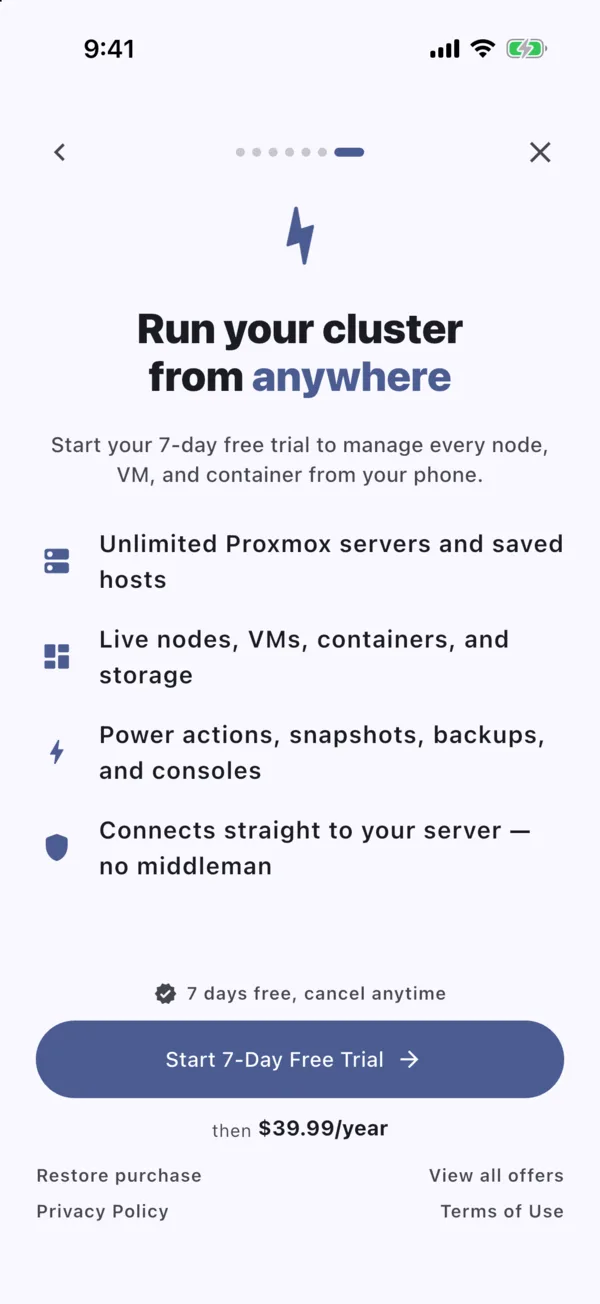
The free trial
New subscribers can try VisorMon Pro free for 7 days. The App Store or Google Play decides whether you can have the trial, and the paywall changes to match:
| When you can have the trial | When you can't (for example, you have had it) | |
|---|---|---|
| The paywall says | 7 days free, cancel anytime | No commitment, cancel anytime |
| The button | Start 7-Day Free Trial | Subscribe Now |
| Below the button | then and the plan's price | The plan's price |
| Billing | Starts when the 7 days are up, unless you cancel first | Starts straight away |
When the trial ends, the store charges you for the plan you chose and renews it from then on, until you cancel (see Checking, changing or canceling).
The plans
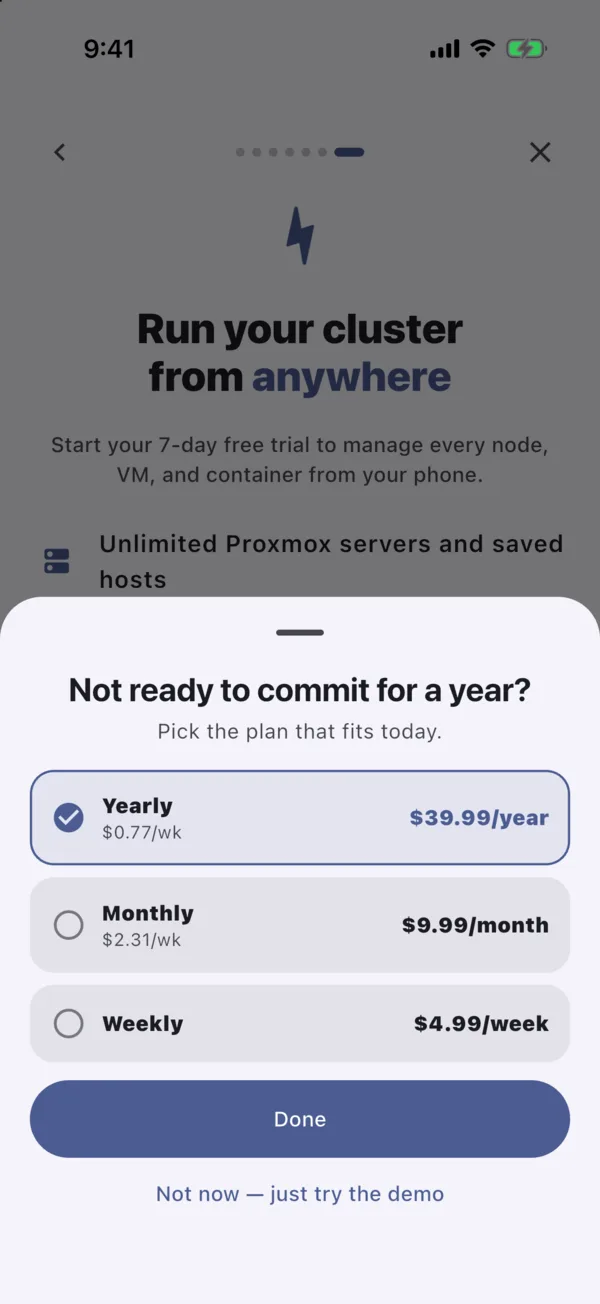
There are three plans: Yearly, Monthly and Weekly. They all include the same thing, everything in VisorMon for every server, and differ only in how often you pay. The paywall starts with Yearly selected. The App Store and Google Play set the prices in your currency; the paywall shows the amount you are billed, such as the price per year, and the store shows the final price again before you confirm. In View all offers, Yearly and Monthly also show what they work out to per week, in small type.
11.3Subscribing
VisorMon offers Pro in two places:
- The last page of the tour, the first time you open the app (or after Settings › Replay onboarding).
- After you sign in to a server, when you have no trial or subscription. The paywall opens instead of your server.
- To choose a plan other than Yearly, tap View all offers. In Not ready to commit for a year?, tap a plan, then tap Done.
- Tap Start 7-Day Free Trial, or Subscribe Now.
- Confirm the purchase with the App Store or Google Play.
As soon as the store confirms it, the tour ends, or your server opens. The subscription belongs to your Apple Account or Google account, and it covers every server you add in VisorMon.
If the store's plans have not loaded, for example because the phone is offline, VisorMon says Subscriptions are unavailable right now. Check your network and try again.
Finishing the tour without subscribing
On the last page of the tour, tap ✕ at the top right, or View all offers, then Not now — just try the demo. If VisorMon shows a different paywall on your iPhone, close it. The tour ends and you can try the demo, or sign in and subscribe later.
11.4Restoring a purchase
Your subscription belongs to your Apple Account or Google account, not to the phone or to a server. On a new phone, or after reinstalling VisorMon, restore it:
- Make sure the phone is signed in to the App Store or Google Play with the account you subscribed with.
- Tap Restore purchase. It is on the paywall, and in Settings › VisorMon Pro.
If the store finds your subscription, Pro is back straight away. If not, VisorMon says No subscription found for this Apple Account. or No subscription found for this Google account. Check that you are using the right account.
A subscription bought on iPhone does not unlock VisorMon on Android, or the other way round, because each is sold by its own store.
11.5Checking, changing or canceling
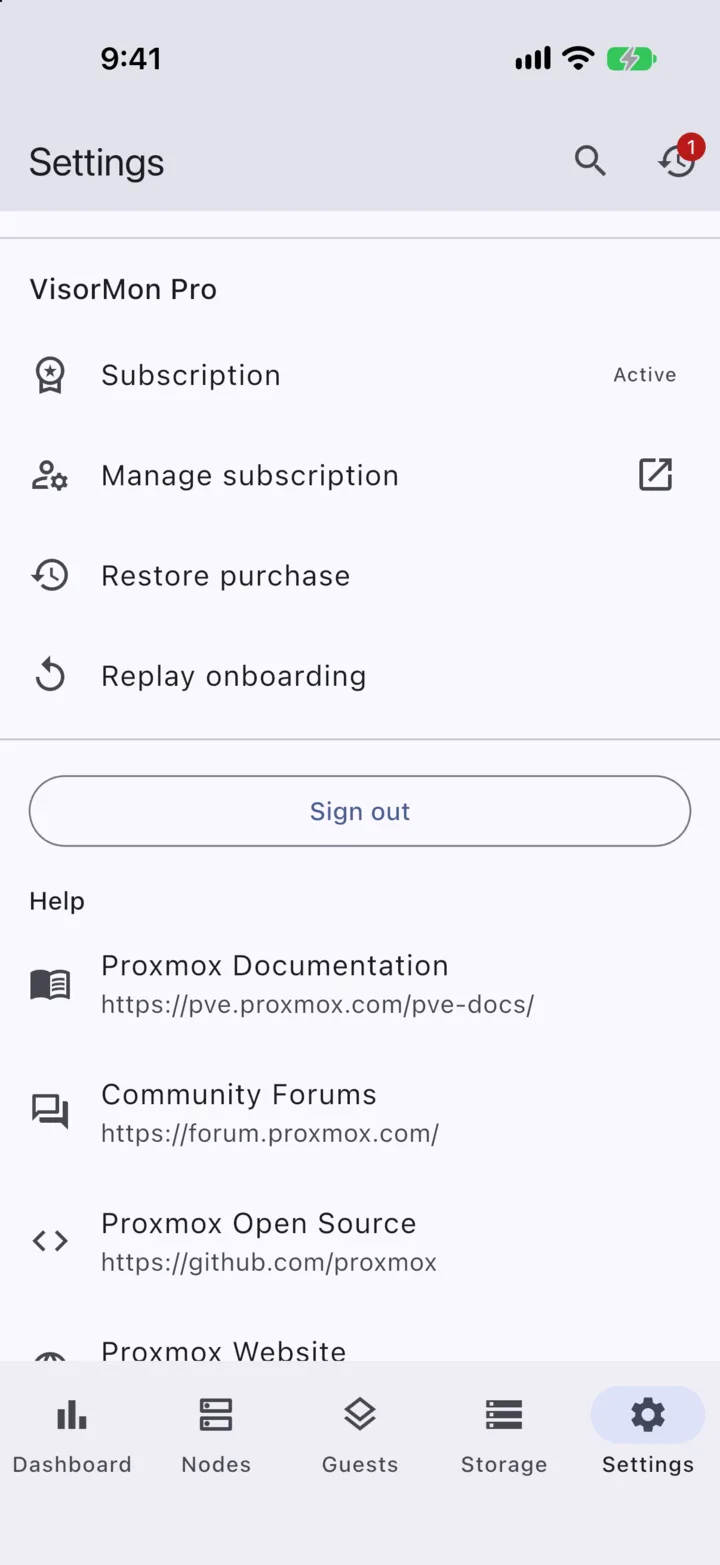
Go to Settings › VisorMon Pro:
- Subscription
- Where you stand: Free trial, Active or Not subscribed. On Android, a trial shows as Active.
- Manage subscription
- Opens your subscriptions in the App Store or Google Play, where you can change plan or cancel. Shown only while you have a trial or Pro.
- Restore purchase
- Asks the store for your subscription again (see Restoring a purchase). If it finds none, the reason appears below it.
- Replay onboarding
- Shows the tour again, ending with the paywall if you have no trial or Pro.
You can also manage the subscription from the phone itself: on iPhone, in Settings › your name › Subscriptions; on Android, in the Google Play Store app, under your profile picture › Payments & subscriptions › Subscriptions.
Canceling
Cancel in the App Store or Google Play, as above. Deleting VisorMon does not cancel the subscription.
- To avoid being charged when the free trial ends, cancel before it ends. Apple asks you to cancel at least 24 hours before a trial or a paid period ends.
- After you cancel, you keep Pro until the end of the trial or the period you have paid for.
11.6When the trial or subscription ends
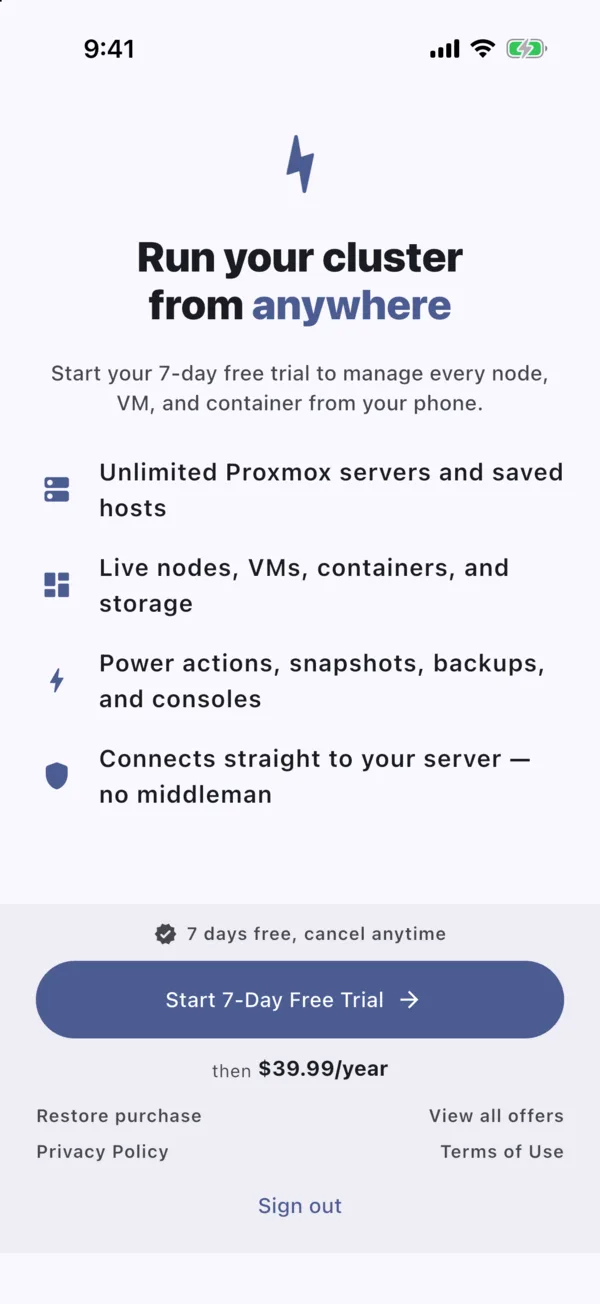
The next time you open VisorMon with one of your servers, it may show Checking your subscription… for a moment while it asks the store. Then it shows the paywall instead of your server. If you have had the trial, the button reads Subscribe Now, and VisorMon's own paywall adds Thanks for trying it out — we'd love to have you back!
The paywall has Restore purchase, View all offers and, at the bottom, Sign out. If the plans open over another page instead and you close them, that page stays, with the heading Subscribe to keep going and the line VisorMon needs a subscription to connect to your server. The demo stays free. Either way you can:
- subscribe again (on that page, tap See plans),
- tap Restore purchase if you have a subscription on this store account, perhaps bought on another phone, or
- tap Sign out, then Try demo on the sign-in screen to use the demo.
Nothing on your servers changes, and VisorMon keeps your saved servers and settings. Subscribe again and everything is as you left it.
Offline. When the phone cannot reach the store, VisorMon trusts the last answer it had for a while: on iPhone until the date your trial or subscription was due to renew, and on Android for three days after Google Play last confirmed it.
11.7The demo and VisorMon Pro
The demo is always free. It never shows the paywall, and every screen works on its sample cluster, so you can see exactly how VisorMon works before you subscribe. See Getting started for how to start and leave it.
- Using the demo does not start or use up your free trial. The trial starts only when you tap Start 7-Day Free Trial and confirm with the store.
- To subscribe from the demo, tap Settings › Replay onboarding and go to the last page, or leave the demo and sign in to your server.
- When a trial or subscription ends, the demo keeps working.
11.8Questions
- Do I need a subscription for each server?
- No. One subscription covers every server you add in VisorMon.
- I subscribed, but VisorMon still shows the paywall.
- Tap Restore purchase, and check that the phone is signed in to the App Store or Google Play with the account you subscribed with. If the phone was offline, connect it and try again.
- Can I use VisorMon on iPhone and Android with one subscription?
- No. A subscription works on the platform where you bought it. On another phone of the same kind, signed in to the same store account, tap Restore purchase.
- What happens to my servers if I cancel?
- Nothing. VisorMon never changes anything on a server because of your subscription. When Pro ends, VisorMon shows the paywall instead of your servers, and keeps your saved servers on the phone.