VisorMon User Guide
Chapter 10
Security and privacy
How VisorMon protects your servers and your data: credentials, read-only mode, the audit log and locks.
10.1At a glance
VisorMon can power off a node or delete a virtual machine (VM), so it is built to keep both your servers and your sign-in details safe. In short:
- Direct connection. VisorMon connects straight from your phone to your Proxmox server. There is no VisorMon account and no VisorMon server in between.
- Secrets in secure storage. Token secrets, passwords and sessions are kept in the phone's secure storage and sent only to your server.
- Read only. One switch stops the app from changing anything, and the audit log lists what the app sent.
- Locks. The phone can be made to confirm it is you before a console opens, and when VisorMon starts.
- Anonymous statistics. Usage statistics and crash reports never include your servers, names or credentials, and you can turn them off.
This chapter explains each one, and what it does not do.
10.2How VisorMon connects
VisorMon uses the Proxmox VE application programming interface (API) at the address you sign in with: the same API the Proxmox web interface uses. Requests go from your phone to that address, over your Wi-Fi or mobile data, and through your virtual private network (VPN) if you use one. Nothing passes through a server of ours. In a cluster, requests for other nodes go through the node at that address, as they do in the Proxmox web interface.
Consoles connect to the same address. The terminal and the VM screen run from code built into VisorMon and load nothing from the internet.
Apart from your server, VisorMon connects only to:
- Firebase (Google), for usage statistics and crash reports, and only while that setting is on. See Usage statistics and crash reports.
- Superwall, on iPhone, which shows the VisorMon Pro offer, and only while the same setting is on.
- The App Store or Google Play, to buy or restore VisorMon Pro. VisorMon never sees your payment details.
- Web pages you open from the app, such as the Help links in Settings, which open in your browser.
10.3Your sign-in details
VisorMon keeps what it needs to sign you in again, split by how sensitive it is. Secrets go in the phone's secure storage: the Keychain on iPhone, and encrypted storage protected by the Android Keystore on Android. The rest is kept with the app's other settings.
| What | Where it is kept | How long |
|---|---|---|
| API token secret | Secure storage | Until you remove the server |
| Password, for password sign-ins | Secure storage, so Login with Face ID can sign you in again | Until you remove the server |
| The live session: the API token as sent to Proxmox, or the Proxmox login ticket and its cross-site request forgery (CSRF) prevention token | Secure storage | Until you sign out, switch servers, or Proxmox ends the session |
| Server address, user name, realm, token ID, sign-in method, and the Ignore SSL certificate errors choice | App settings on the phone | Until you remove the server |
VisorMon sends your token or session only to the server address you entered, and never to the services listed above. The password is sent only when you sign in.
On Android the sign-in button reads Login with biometrics, as it does on an iPhone with Touch ID.
Signing out and removing a server
- Sign out disconnects VisorMon and deletes the session from the phone. The server stays saved with its token secret or password, so you can sign in again quickly.
- Removing a server takes it off the list and deletes the token secret, password and session saved with it, and its details on the sign-in form. When no other saved server has the same address, VisorMon also forgets the consent notice you accepted there and the guests you pinned for it. VisorMon asks first, in Settings › Saved hosts and on the sign-in screen: Remove host? If it is the server you are signed in to, the button reads Remove and sign out.
- When Proxmox ends a session, for example when a password sign-in's ticket expires, VisorMon deletes the session and shows Login expired.
For the steps, see Settings and Getting started. If you lose your phone, or want a token never to work again, delete the token in the Proxmox web interface under Datacenter › Permissions › API Tokens; for a password sign-in, change the password.
Choosing an account for VisorMon
VisorMon can do whatever the account you sign in with may do in Proxmox, and no more. It reads that account's permissions when you sign in, and grays out or hides what they do not allow. For the least risk, sign in with an API token that has only the privileges you need. A look-only token, together with read-only mode, means nothing can be changed by accident. Note that the node shell and container consoles need a password sign-in; see Troubleshooting.
10.4Certificates
Proxmox uses HTTPS (secure web connections) on port 8006. By default, VisorMon checks your server's certificate before it sends a request to the API, the way your phone checks any secure website. A new Proxmox install uses a self-signed certificate, which that check refuses, with the message The secure connection to the server failed. If it uses a self-signed certificate, turn on “Ignore SSL certificate errors” and try again.
You have two choices:
- Give the server a certificate your phone trusts. This is the better choice. Proxmox can get one from Let's Encrypt with its built-in Automatic Certificate Management Environment (ACME) support, set up in the Proxmox web interface under the node's System › Certificates.
- Turn on Ignore SSL certificate errors on the sign-in screen (Use only for self-signed homelab certs). VisorMon then accepts any certificate at that address. The connection is still encrypted, but VisorMon can no longer tell your server from an impostor, so anyone able to intercept your traffic could pretend to be the server and capture your token or password. Use it only on networks you trust, such as your home network or your own VPN.
The choice is saved with each server. To change it for a saved server, sign out, tap the server under Saved hosts on the sign-in screen, change the switch, and sign in.
VisorMon adds https:// to an address that has none. If you type an address that starts with http://, VisorMon uses it as typed, and nothing sent to it is encrypted.
10.5Read-only mode
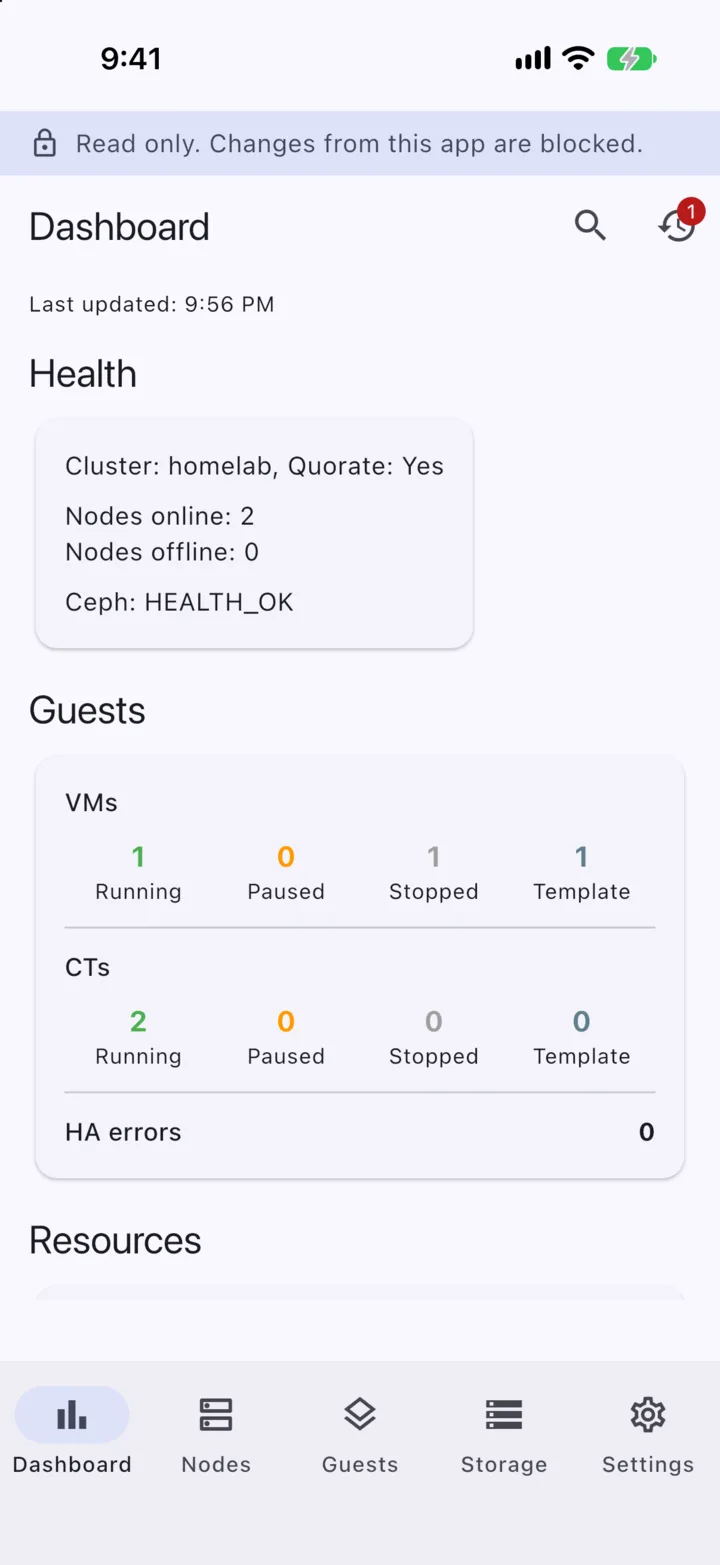
Read-only mode stops VisorMon from changing anything on your servers. Turn it on in Settings › Read only when you only want to look, or when you hand your phone to someone. It is one switch for every server on this phone, and it stays on until you turn it off.
VisorMon checks each request before it leaves the phone. Any request that would change something is stopped and never sent, and you see Read only is on. Turn it off in Settings to make this change. That covers everything VisorMon can change, for example:
- Power actions on guests and nodes, including starting or stopping every guest on a node.
- Snapshots, backups and restores, clones, migrations, and creating or converting guests.
- Saving hardware, options, notes, tags, firewall rules and node settings.
- Starting and stopping services, checking a node for updates, and applying network changes.
- Opening a console or the node shell, which needs a request of the same kind. With read-only mode on, consoles do not open.
While it is on, the main tabs show Read only. Changes from this app are blocked. at the top. Each stopped request is listed in the audit log as Blocked write.
What read-only mode does not do:
- It changes nothing on the server. The Proxmox web interface, other apps and other phones work as before.
- It does not reach into a console that is already open. What you type there goes straight to the server, so close open consoles too if nothing should change.
- It does not stop VisorMon reading: lists, figures, logs and task output still load, and you can still sign in.
10.6The audit log
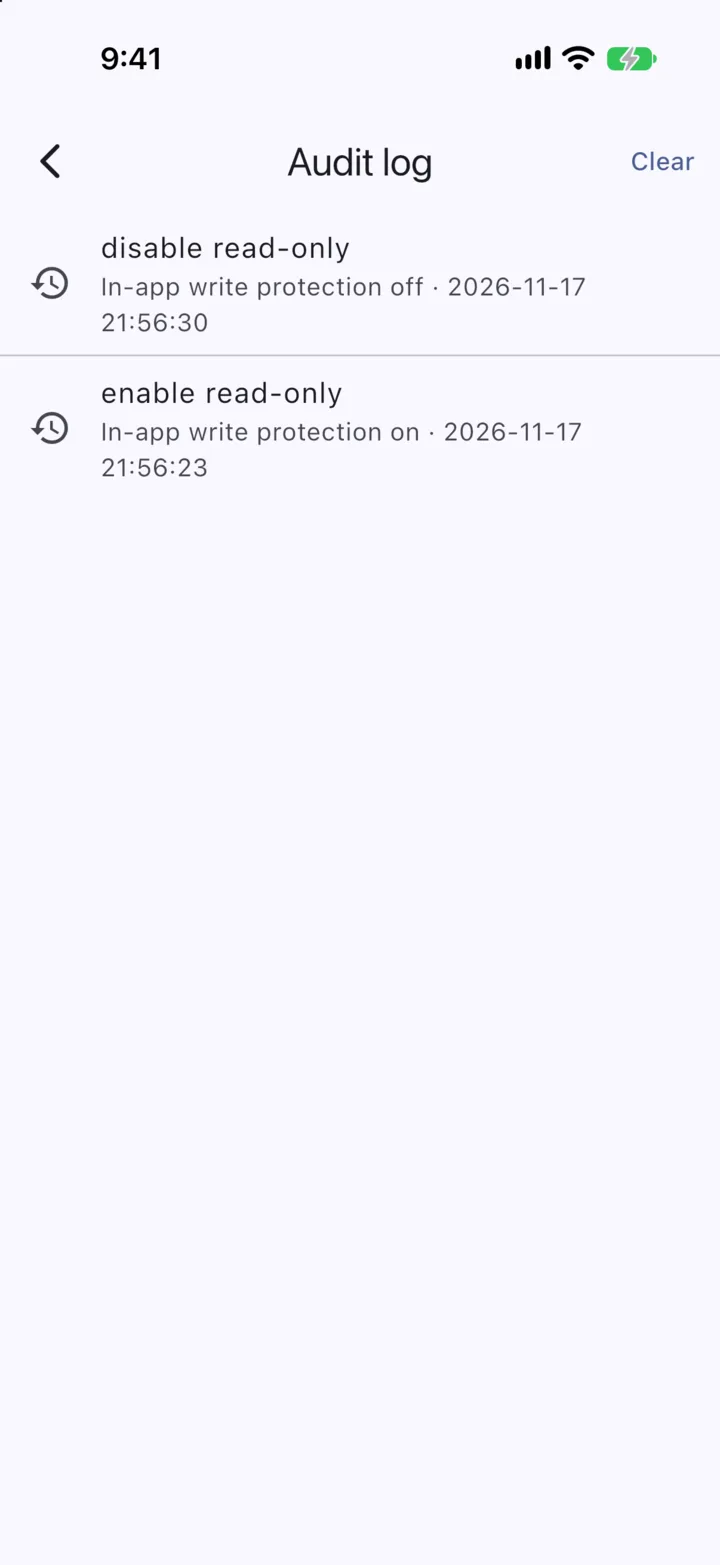
The audit log is VisorMon's own record of what it tried to change from this phone. Open it from Settings › Audit log. The newest entry is at the top, with the date and time in your phone's time zone.
| Entry | Detail | Means |
|---|---|---|
| Write | The request, for example POST /api2/json/nodes/pve/qemu/100/status/shutdown | VisorMon sent this change to the server |
| Blocked write | The request, in the same form | Read-only mode stopped it, and nothing was sent |
| enable read-only | In-app write protection on | Read-only mode was turned on |
| disable read-only | In-app write protection off | Read-only mode was turned off |
A request reads as a method and a path. POST, PUT and DELETE are the kinds of request that change things; requests that only read are not listed. The path names the node and the guest's VM ID, as in nodes/pve/qemu/100 for VM 100 on node pve.
- It shows what was sent, not whether it worked. An entry is made as the request leaves the phone, before Proxmox answers. Check Cluster tasks, or the screen you used, for the result.
- It covers all your servers together. Entries do not name the server.
- It does not record what you type in a console or the node shell, signing in, or changes made in the Proxmox web interface or other tools. For a record kept by the server, use Proxmox's own task history and system log.
The log keeps the latest 200 entries. It is stored only on this phone and is never sent anywhere. It stays when you sign out or remove a server. To empty it, tap Clear at the top right: it clears at once, without asking, and cannot be undone.
10.7Face ID lock and the console lock
Two switches in Settings ask the phone to confirm it is you. The phone does the check, with Face ID, Touch ID, a fingerprint or face, or the phone's passcode. VisorMon never sees your face or fingerprint; it only learns whether the check passed.
| Face ID for consoles | Face ID lock | |
|---|---|---|
| Asks | Each time the node shell or a guest console opens, before anything connects | When VisorMon starts |
| Covers | The node shell, container consoles and VM consoles | The whole app |
| Turning it off | Asks first | Does not ask |
| If the check fails or you cancel | The console stays closed: The console stays closed until this phone confirms it is you. Tap Unlock to try again. | A message saying why, for example Face ID was canceled. Tap Unlock to try again. (see Troubleshooting), and Continue without Face ID, which opens the app |
| Phone with no passcode and no biometrics | The lock cannot ask, so it offers Open without unlocking | As above |
On Android the switches are Biometric lock for consoles and Biometric lock, and the button is Continue without biometrics. They appear only when a fingerprint or face is set up on the phone.
What the locks do not cover:
- The Face ID lock asks when VisorMon starts. If you switch to another app and come back while VisorMon is still running, it does not ask again.
- Because of Continue without Face ID, the Face ID lock keeps VisorMon private at a glance, but does not stop someone holding your unlocked phone from opening it.
- The console lock protects consoles only. Power actions and other changes are not locked; use read-only mode for those.
Your phone's own passcode is what keeps someone else from using it. The console lock adds a second check where it matters most: consoles, where what you type runs straight on your servers.
10.8Usage statistics and crash reports
With Settings › Share usage statistics and crash reports on, VisorMon sends anonymous figures to Firebase Analytics and Firebase Crashlytics (Google) so problems get fixed and the app improves. Each statistic is a count, a fixed label or a yes or no, never something your cluster returned or you typed.
What is sent
- Which screens you open, by a fixed name such as the dashboard or a node's services.
- Features that worked, by a fixed label, for example a snapshot created or a console connected.
- Guest power actions: which action, whether on a VM or a container, and whether it worked, failed, was blocked by read-only mode or was tried on sample data.
- Sign-ins (API token or password), starting the demo, and failed connections with a fixed reason such as unreachable, certificate, timeout, sign-in or permission.
- Steps of the welcome tour, when the subscription offer is shown, and whether a purchase or restore worked.
- Three facts about your setup: whether you use a real server, the sample data or neither; whether you have a trial, Pro or neither; and roughly how many guests you have (none, 1 to 5, 6 to 20, 21 to 50, or more than 50).
- Crash reports: the kind of error and where in VisorMon's code it happened. Not the error's message, because a message can quote a server address.
Firebase adds the basic details it records for any app, such as the phone model, the system version and VisorMon's version.
What is never sent
- Server addresses or host names.
- User names, token IDs, token secrets or passwords.
- Names of nodes, guests or storage, or anything else Proxmox returns.
- Anything you type, including commands in a terminal.
- An advertising identifier. VisorMon does not use one, so it never asks to track you.
Your choice
In most regions the setting starts on. If the region set on your phone is in the European Union, the wider European Economic Area, the United Kingdom or Switzerland, nothing is sent until you answer Help improve VisorMon? on the first screen with Allow or Don’t allow.
Turn the switch off at any time. Usage statistics stop straight away, and crash reports not yet sent are deleted rather than kept for later. On iPhone, Superwall stops showing the subscription offer at once and stops entirely the next time VisorMon starts; VisorMon shows its own built-in offer instead, and you can still subscribe.
10.9What stays on your phone
VisorMon has no account and no server of its own, so what it remembers is kept on your phone:
- Your saved servers and their sign-in details (see Your sign-in details).
- Your settings, including read-only mode, the locks and the terminal settings.
- The dashboard's pane order and hidden panes, the guest overview's order, and pinned guests. Pinned guests are kept for each server address, and forgotten when you remove the last saved server with that address.
- How the Guests tab is grouped.
- Your saved commands.
- The audit log.
- That you accepted a cluster's consent notice, for each server address, until you remove the last saved server with that address.
- The time of the dashboard's last successful refresh, shown in Showing saved data from, with the name of one of your nodes.
- When your trial or subscription runs to, so the app can open without waiting for the store.
Everything else VisorMon shows, such as figures, lists, logs and task output, is fetched from your server while you use the app and is not saved on the phone. The one exception is Share log in a terminal, which writes the output to a temporary file for the share sheet; VisorMon deletes those files once they are an hour old, the next time you share a log.
VisorMon does not copy any of this anywhere. Your phone's own backups may include it, as they do other apps' data.
10.10Privacy policy
The VisorMon privacy policy sets out what is collected, by whom, and your rights: https://jimmyfatmasterson.com/privacy.html#visormon
Questions about privacy can go to support@jimmyfatmasterson.com.